Face Scan
Face Scan: Find Any Person's Photos in an Event Gallery
A face scan photo finder lets a guest open an event's gallery link, scan their face with the phone's camera in the browser, and land on the photos they appear in. It replaces the hand-sorting photographers otherwise do for every attendee, it needs no app and no guest account, and it runs on the same photos you already uploaded for selection. This guide explains how the scan works, who uses it, and where it fits in an event workflow.
By Smart Photo Selection TeamUpdated 4 min readIn Face Scan
What a face scan photo finder is
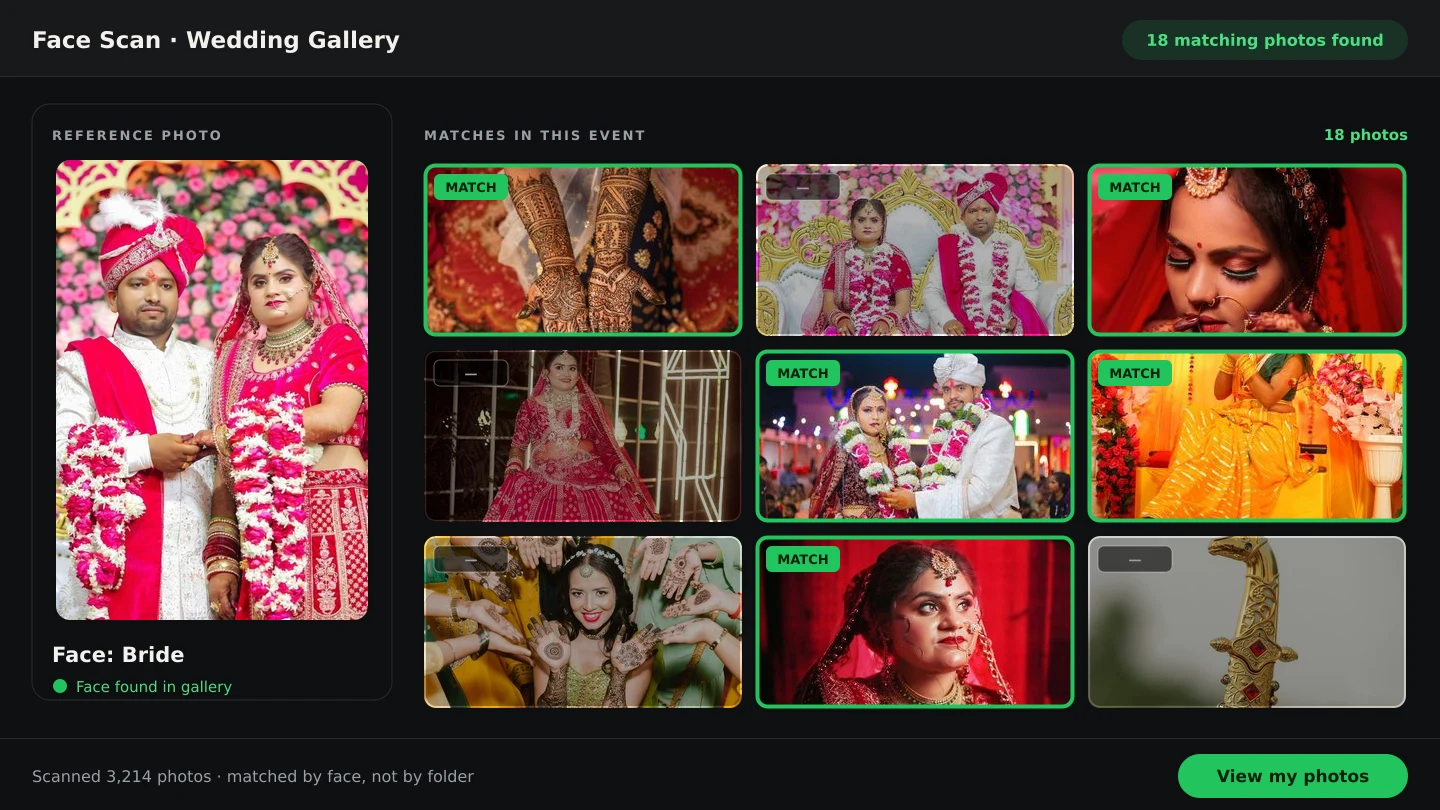
Smart Photo Selection's face scan works like this: instead of scrolling a gallery of thousands of photos looking for yourself, you scan your face once and see the photos you are in. The guest opens the event's link or QR code, allows the camera, and the scan is matched against the photos uploaded for that booking. Matched photos open on a results page the guest can return to and share — no app to install, no account to create.
How it works
- 1
Share the event link or QR
Every booking has its own scan link and QR code — send it on WhatsApp, show it on a screen, or print it at the venue.
- 2
The guest scans their face
A short camera scan in the phone's web browser. Face recognition runs right there in the browser.
- 3
Photos are matched
The scan is compared against the photos uploaded for that event only.
- 4
Results appear
The photos the guest appears in open on a page they can revisit and share.
What “scan” means here
The word is doing a lot of work. This is not a device for digitising old printed photographs or documents; it is a way of finding people in event photos. The scanner reads a guest's face and searches that event's gallery for them. For a wedding, a reception, a party or a corporate event, that turns “send me my photos” from a manual task into a link you send once — and because the guest only ever searches this booking's photos, one link or QR code is all the event needs.
Why photographers offer it
- Fewer requests. Guests find their own photos instead of waiting for you to sort them by hand.
- Nothing to install. It runs in the browser from a link or QR code, on any phone the guest already has.
- No second upload. It searches the photos you already uploaded for client photo selection.
- Your studio stays visible. The gallery carries your name and contact details, so every link you share still looks like your studio.
- Results guests can share. The matched photos open on a page that can be passed on to family or colleagues.
Where it sits in the workflow
Face scan comes after upload and usually runs alongside client selection rather than before it. You upload the shoot into folders, cull it, and share one online photo gallery: the couple or organiser marks favourites while guests use the scan to find their own pictures. Both read the same booking, so there is no separate guest library to maintain, and anyone with the link can open it without logging in — your studio name, Instagram link and phone number sit at the top of the page, with the total photo count beside the gallery tools. The photography workflow page shows the whole sequence.
Getting guests to actually use it
- Print the QR code and place it where people wait — the entrance, the bar, the seating cards.
- Display it on a screen during the event, with a one-line instruction.
- Send the link in the group chat the next morning, while the event is still recent.
- Mention it once in person; a guest who has scanned never asks you to find their photos again.
Limits worth knowing
- Only photos uploaded to that booking are searched, so upload before you share the link.
- A guest sees the photos they appear in — group shots and candids included, not just portraits.
- Heavy sunglasses, masks or a very different angle can reduce matches; a second scan usually helps.
- Face scan is available on photographer premium plans.
face scanphoto finderguest photosevent photography
Frequently Asked Questions
Do guests need an app or an account?
Neither. They open the event's link or scan its QR code, and the face scan runs in the phone's web browser.
Is this a scanner for old printed photos?
No. It finds a guest's face in the photos of an event. It does not digitise printed photographs or documents.
Which photos does a guest see?
Only the photos uploaded for that event that they appear in, opening on a results page they can revisit and share.
How do I share it with guests?
Each booking has a scan link and a QR code. Send the link, or display and print the QR code at the venue.
Does it need a separate upload?
No. It searches the same photos you uploaded for client photo selection and the gallery.
Which events is it useful for?
Weddings, receptions, birthday and family parties, corporate events, and any other event where guests want their own photos.
Articles in This Series
- How to Find Bride and Groom Photos FasterPractical ways to locate bride and groom photos across a wedding gallery of thousands: folder structure, selection marks and face-based search.
- Face Scan vs Manual Photo Search: What Helps GuestsA clear comparison of face scan photo finding and manual gallery search: speed, coverage, privacy and what each approach means for photographers.
- How to Deliver Wedding Photos FasterShorten the gap between the wedding and the final handover: background uploads, an early cull, online selection, one gallery link and ZIP delivery.
- The Complete Wedding Photography WorkflowOne workflow from the wedding day to delivery: folder uploads, culling, client selection, face scan for guests, gallery delivery and album sheets.
- What Is Photo Selection Software? The Complete Photographer's GuidePhoto selection software explained: online galleries, client proofing, AI shortlists and face search — what it does, who needs it and how it differs from culling.
- Photo Selection vs Photo Culling: What's the Difference?Culling removes rejects on your computer; selection collects the client's decision online. What each step does, who it serves, and the order that works.
- Best Photo Selection Software for Wedding Photographers: How to ChooseHow wedding photographers should compare photo selection software: online proofing, AI shortlists, face search, album handoff — and the questions that reveal fit.
- How to Select the Best Wedding Photos FasterA practical method for choosing the best photos from a large wedding shoot: two passes, folders per function, AI help and a locked client choice.
- The Client Photo Selection Workflow, Start to FinishHow client photo selection works online: share a gallery, let the client mark favourites, lock the set on submission and download exactly what they chose.
- What Is Wedding Album Automation?Wedding album automation explained: upload a PSD template once, confirm the photo slots, and map every wedding's photos into finished sheets automatically.
- How AI Chooses Photos and Album LayoutsWhat Smart Photo Selection's AI measures — sharpness, exposure, faces, orientation and duplicates — and how those signals become a hero photo and a balanced spread.
- AI Wedding Album Design: The Complete GuideHow AI wedding album design works, what it does well, where you still decide, and a practical workflow from photo selection to print-ready export.
- Bleed, Safe Area and the Centre Fold in Wedding AlbumsWhat bleed, trim, safe area and the centre fold mean for wedding album spreads, how binding affects the gutter, and how to keep faces and text safe.
- How Many Photos per Wedding Album Spread?Choosing how many photos to put on each wedding album spread: density, pacing, hero images, page splits like 3 + 4, and when fewer photos tell more.
- 12 × 36 vs 14 × 40 Wedding Album: Which Size Should You Offer?12x36 vs 14x40 wedding albums compared: page size, ratio, pixels at 300 DPI, photo resolution needed and which layouts and clients each size suits best.
- Double Exposure Wedding Album Ideas That Actually WorkTen double exposure pairings for wedding album spreads, how to choose photos that blend well, where to place them in the album and when to avoid the effect.
- Indian Wedding Album Design Ideas: Haldi, Mehndi, Sangeet, Wedding and ReceptionIndian wedding album design ideas for every function: haldi, mehndi, sangeet, baraat, pheras, vidaai and reception, with layouts, palettes and pacing.
- Wedding Photo Colour Grading Styles: Choosing a Look That LastsWarm, film, clean and bright, moody cinematic or teal and orange: how each wedding colour grading style works, who it suits and how to keep albums consistent.
- Natural Skin Retouching for Wedding Photos: What to Fix and What to LeavePrinciples of natural skin retouching for wedding albums: what to remove, what to keep, preserving texture, consistency across spreads and asking clients.
- JPG vs PNG vs TIFF vs PSD: Which File Format for Wedding Albums?Which file format to send your album lab: JPG, PNG, TIFF or PSD compared on quality, size, layers and colour profiles, and what Smart Photo Selection exports today.
- A Wedding Album Delivery Workflow for PhotographersA practical album workflow for wedding photographers: client photo selection, design, review rounds, revisions, lab checks, printing and final delivery.
- AI Photo Selection for Wedding PhotographersWhat AI photo selection does with sharpness, exposure, faces and duplicates, and how to use it on a wedding shoot without losing the moments that matter.
- From Selected Photos to a Finished AlbumTurn a couple's submitted selection into printable album sheets: create the project, choose the photos, generate, review, edit and export at full size.
- A Wedding Photo Culling Workflow That Keeps UpA repeatable culling workflow for wedding photographers: remove rejects, break ties between near-duplicates and hand a clean gallery to the couple.
Step-by-Step Guides
- How to Find Photos With Face ScanSet up and use Face Scan in Smart Photo Selection: share the gallery link or QR code, let a guest scan their face in the browser and show the photos they appear in.
- How to Capture a Good Face Reference for a ScanGet a face scan that matches: how to position, light and hold the phone so Smart Photo Selection captures a clear reference of the guest's face in the browser camera.
- How to Manage and Deliver Photo GalleriesRun a booking's gallery end to end: downloads, private mode, sharing by link or QR, ZIP delivery of the selected set and the photo period that governs expiry.
- How to Send Photos to Clients for SelectionHand a gallery to the couple for photo selection: share the link or QR, let them mark frames with Done, then submit so the agreed set is locked for delivery.
Related Features
Design Your Next Album in Smart Photo Selection
Generate spreads from a booking's photos, refine them in the layer-based editor and export print-ready files.