Smart Photo Selection guide
How to Find Photos With Face Scan
Set up and use Face Scan in Smart Photo Selection: share the gallery link or QR code, let a guest scan their face in the browser and show the photos they appear in.
By Smart Photo Selection TeamUpdated Published 5 min read
Short answer
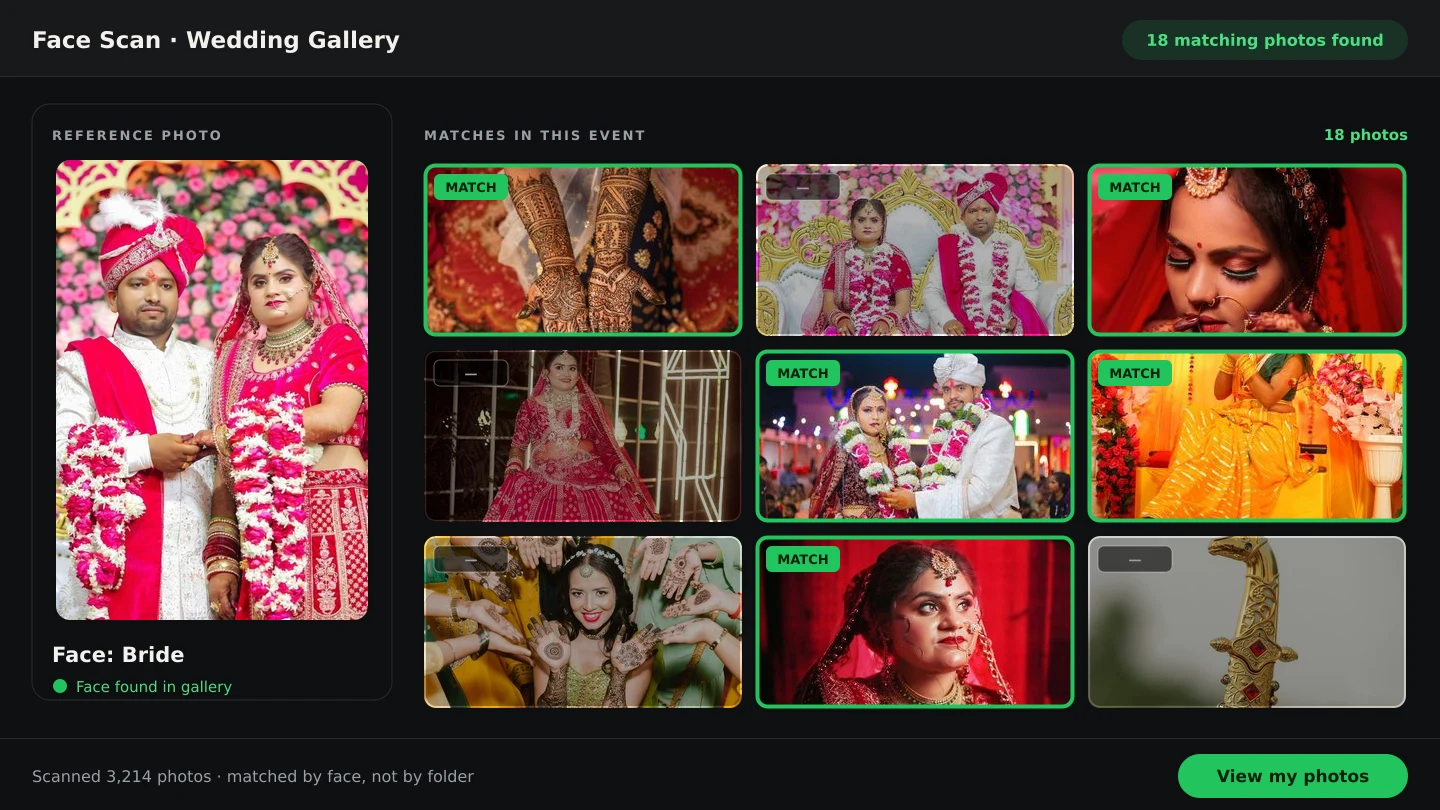
Photographer: open the booking's gallery, click Scan to reach the scan page for that booking, then share the link with Share or the QR dialog (Copy Link / Download QR). Guest: open the link, tap Start Scan, allow the camera and stay in the frame — the screen goes from Finding your photos... to a results page with Scanned By, Images Checked and Matches Found, listing every photo of that person in the event.
What You Need
- The event's photos uploaded to the booking gallery — Face Scan searches those photos and nothing else.
- An active photographer premium subscription for the booking; otherwise the scan page shows
Scan is unavailable. - A phone or laptop with a camera, and HTTPS (the camera only opens on secure pages).
- Chrome, Safari, Firefox or Edge with face detection support — recognition runs in the guest's browser.
What Face Scan does
Face Scan answers the question every wedding guest asks: where are my photos? A guest opens the event's gallery link or scans its QR code, allows the camera, and looks at the phone for a second. The scan is matched against the photos you uploaded for that booking — only that booking — and the matches open on a results page the guest can return to and share. There is no app to install and no guest account; face-api.js runs the recognition in the browser on the guest's device.
Step by step: set it up and share it
- 1
Open the scan page for the booking
In the gallery or on the booking's
Booking Imagescard, clickScan. You land on theScanpage, which shows Booking: <id> and lists any earlier scans as cards with a name, the date and Tap to view photos. - 2
Share the link or the QR code
Click
Shareto use the phone's share sheet, orCopy Linkwhen it falls back to the clipboard (toast: Link copied to clipboard). ClickQRto open the QR dialog — Scan this QR code to open this booking's photos — and useCopy LinkorDownload QRto print it for the venue. - 3
The guest opens the gallery
From the link or QR, the guest sees the studio name, phone and gallery with its folder tabs. They click
Scanin the toolbar, thenStart Scanon the scan page. - 4
They scan their face
The camera opens on Find Your Photos with Look at the camera. The scanner measures the face until it is close, centred, lit and held still, shows Hold still… 1/5 through five stable readings, then Finding your photos... and completes with a toast. Guidance for getting that right is in create a good face reference.
- 5
Matches appear
The results page shows
Scanned By,Images CheckedandMatches Found, then the matched photos in a grid, loading more as the guest scrolls.Sharecopies the results link (Link copied.), and clicking a photo opens it full screen (ESC closes it). - 6
Review scans from the studio side
Back on the
Scanpage, each scan card opens the same results for you — useful when a guest asks you to check on their behalf. The trash icon deletes a scan (toast: Scan deleted successfully.).
Getting guests to use it
- Put the QR code on the welcome board and the reception table so guests can scan it without asking for a link.
- Send the gallery link in the wedding group chat with one line: tap Scan and look at the camera.
- Use the same link for everything — client selection, downloads and Face Scan all live at one address.
- Keep the shoot uploaded before the event ends, so matches cover the whole day rather than the morning.
Tips
- Test the flow yourself before the wedding: open the link on your own phone and run a scan end to end.
- Upload every folder before you print the QR code —
Images Checkedtells guests how much of the shoot was searched. - Give the QR a generous size: guests scan it in a dim hall, and small codes fail in low light.
- If a guest's scan returns nothing, re-scan with better light rather than scrolling the gallery with them.
Common Mistakes
Sharing the dashboard link instead of the gallery link
Use
Shareor theQRdialog from the booking — those point at the public gallery address guests can open without logging in.Expecting matches from photos not yet uploaded
Only photos in the booking are searched. Finish the upload first, then share (see upload and organise).
Handing the scan to a group
The scan must show exactly one person; a group photo in the camera makes it ask Please make sure only one face is visible.
Letting scans pile up unused
Delete scans you no longer need from the
Scanpage so guests' results are not kept on your booking longer than the event.
Frequently Asked Questions
Does the guest need an account or an app?
Neither. The scan runs in the phone's browser from the gallery link, and the results live at a link they can reopen.
Which photos does it search?
Only the photos uploaded to that booking's gallery. It never searches other bookings or stock images.
Why did a scan find nothing?
Usually lighting, distance or a face partly outside the frame — see create a good face reference. Also check that the photos are uploaded and the subscription is active.
Can guests browse without scanning?
Yes. The gallery keeps its folder tabs, Selected filter and downloads; Face Scan is the fast route through a large event.
Related Guides
- How to Capture a Good Face Reference for a ScanGet a face scan that matches: how to position, light and hold the phone so Smart Photo Selection captures a clear reference of the guest's face in the browser camera.
- How to Manage and Deliver Photo GalleriesRun a booking's gallery end to end: downloads, private mode, sharing by link or QR, ZIP delivery of the selected set and the photo period that governs expiry.
- How to Send Photos to Clients for SelectionHand a gallery to the couple for photo selection: share the link or QR, let them mark frames with Done, then submit so the agreed set is locked for delivery.
- How to Upload and Organize Event PhotosUpload a full wedding shoot into Smart Photo Selection, keep one folder per function, recover failed uploads and check the gallery is organised before you cull.
Related Features
Further Reading
- Face Scan: Find Any Person's Photos in an Event GalleryHow a face scan photo finder works: a guest scans their face in the phone browser and sees only the event photos they appear in, with no app and no account.
- Face Scan vs Manual Photo Search: What Helps GuestsA clear comparison of face scan photo finding and manual gallery search: speed, coverage, privacy and what each approach means for photographers.
- How to Find Bride and Groom Photos FasterPractical ways to locate bride and groom photos across a wedding gallery of thousands: folder structure, selection marks and face-based search.
Try It in Smart Photo Selection
Open Album Studio with a photographer account, pick a booking and follow the steps above on your own photos.