AI Photography
How AI Chooses Photos and Album Layouts
Smart Photo Selection's AI does not have taste; it has measurements. It scores sharpness, exposure, faces, orientation and near-duplicates, then turns those scores into a layout: the strongest frame becomes the hero, portraits go into tall frames, consecutive sheets avoid repeating themselves, and anything too small to print well is flagged. Understanding those signals explains both what the generator gets right quickly and why the final sequence is still yours to decide.
By Smart Photo Selection TeamUpdated Published 4 min readIn AI Photography
What the AI actually measures
Before a single frame is placed, the photos chosen for the album are analysed. The analysis runs in the browser on the booking's photos, and it looks at properties that can be measured objectively — not at whether a moment is meaningful. Those measurements become the raw material for every decision that follows.
- Sharpness: whether the subject is genuinely in focus, which separates a usable hero from a soft frame.
- Exposure: blown highlights and crushed shadows, which decide how a photo will print.
- Faces: where faces are and how clear they are, which drives cropping and frame sizing.
- Orientation and aspect: portrait frames belong in tall slots, landscapes in wide ones.
- Near-duplicates: bursts of the same moment, so only one copy competes for a place.
- Colour: used to sample a background that belongs to the wedding's own palette.
Choosing the hero
In Smart Photo Selection's AI Album Generator, each sheet gets one dominant photo — sharp, well exposed, with clear faces — and the rest are sized by importance around it. This is why generated spreads rarely look like even grids: hierarchy is the first rule. A sheet with a strong portrait and three supporting frames reads faster than the same four photos at equal size, and it mirrors how an experienced designer works.
Building the sheet around the hero
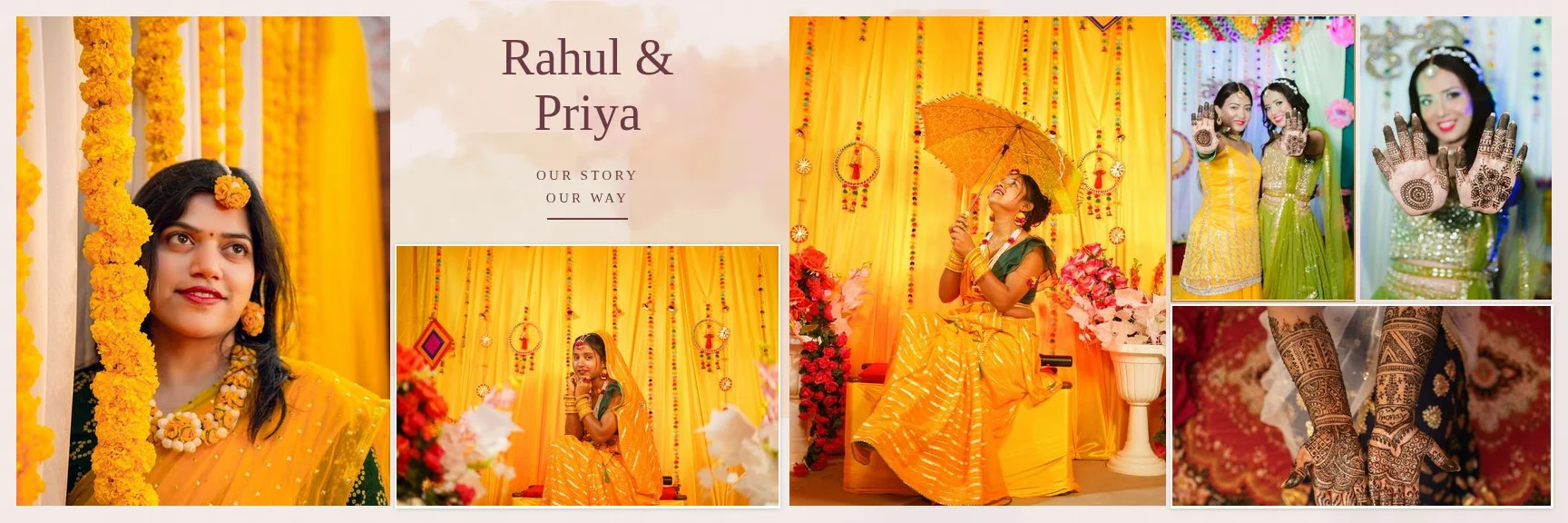
Orientation is matched as the sheet is built: portrait photographs go into tall frames, landscapes into wide ones, and crops always preserve the frame's ratio rather than stretching the photo. Detected faces stay inside the crop and away from the frame edges, so a supporting slot does not cut the subject off — pan or zoom inside any crop to check. Supporting and detail photos then fill the remaining space by importance, and layered or exposure blends are used where a quieter transition helps, most often on opening sheets and chapter breaks. Backgrounds are sampled from the photos' own colours, so a marigold-heavy haldi and an evening reception can look different without being redesigned. Double exposure ideas cover which frames pair well.
Variety, fold and resolution
- Variety: consecutive sheets do not repeat the same arrangement, so a 20-spread album does not read as one template twenty times.
- Fold safety: photos and text stay clear of the centre fold, with a 0.125 in fold-safe zone on each side.
- Resolution: each photo's effective ppi at its printed size is calculated, and anything under 200 ppi is flagged before you export.
- Photo count: you set how many photos each sheet holds, or let the generator decide — select 8 photos for a sequence and an 8-photo template takes exactly those eight, one per slot, in order, with no repeats.
What the AI does not measure
Which moment mattered, which expression the couple will frame, and the cultural order of a wedding's events are not visible in the data. The generator will place a technically perfect photo of the décor beside a slightly softer photo of the vows without hesitating. Reorder sheets, swap heroes and add the quiet frames yourself — the AI wedding album design guide sets out the division of labour. The same analysis runs before generation, scoring sharpness, exposure, faces and duplicates to propose a shortlist from your selection, which you can add to or trim before the layout is built; see AI photo selection for that side of the scoring.
When you disagree with a result
- Swap the photo on the frame directly — usually the fastest fix.
- Adjust the crop if the placement was right but the framing is not.
- Regenerate that sheet: regeneration uses a new seed, so you get a genuinely different composition, not the same layout shuffled.
- Change the photos per sheet if the count itself is wrong for the sequence.
- Open the sheet in the album editor when you want control beyond swaps and crops.
AI album designalbum layoutphoto selectionalbum generator
Frequently Asked Questions
Does the AI change the content of my photos?
No. It chooses, arranges, crops and masks them. Faces, bodies and scenery stay exactly as photographed; any retouching is something you apply yourself.
Why did it choose a different photo than I would have?
It measures sharpness, exposure and faces, not meaning. Swap the hero on the frame — that decision stays yours.
Will every sheet look different?
Yes. Consecutive sheets use different composition styles, and each sheet can be regenerated for a genuinely different variation.
Can I fix a photo that prints too small?
Yes. Photos whose effective resolution falls below 200 ppi are flagged, so you can enlarge, replace or consciously accept them before export.
Does it work with my own PSD template?
Yes. Choose a saved PSD template and the photos are mapped into its slots instead — see what is wedding album automation.
Related Articles
- AI Wedding Album Design: The Complete GuideHow AI wedding album design works, what it does well, where you still decide, and a practical workflow from photo selection to print-ready export.
- AI Photo Selection for Wedding PhotographersWhat AI photo selection does with sharpness, exposure, faces and duplicates, and how to use it on a wedding shoot without losing the moments that matter.
- What Is Wedding Album Automation?Wedding album automation explained: upload a PSD template once, confirm the photo slots, and map every wedding's photos into finished sheets automatically.
- How Many Photos per Wedding Album Spread?Choosing how many photos to put on each wedding album spread: density, pacing, hero images, page splits like 3 + 4, and when fewer photos tell more.
- Double Exposure Wedding Album Ideas That Actually WorkTen double exposure pairings for wedding album spreads, how to choose photos that blend well, where to place them in the album and when to avoid the effect.
Step-by-Step Guides
- How to Create a Wedding Album With AIStep-by-step: pick a booking, run the AI photo selection, choose a size and design style, generate the spreads, then review and export your wedding album.
- How to Edit an AI-Generated Album DesignRefine AI-generated wedding album spreads: regenerate a sheet, change photos and crops, resize frames, edit text and exposure layers, and keep it all off the fold.
- How to Choose an Album TemplatePick the right layout for a book: browse system templates, search your own PSDs, filter by photos per sheet and size, and start it with AI or the manual editor.
- How to Generate Album SheetsRender the album into print files: pick JPG, PNG, Layered PSD, TIFF, PDF or WebP, pass the preflight checks, watch the job run, and download the sheets.
Related Features
Design Your Next Album in Smart Photo Selection
Generate spreads from a booking's photos, refine them in the layer-based editor and export print-ready files.