Smart Photo Selection guide
How to Send Photos to Clients for Selection
Hand a gallery to the couple for photo selection: share the link or QR, let them mark frames with Done, then submit so the agreed set is locked for delivery.
By Smart Photo Selection TeamUpdated Published 4 min read
Short answer
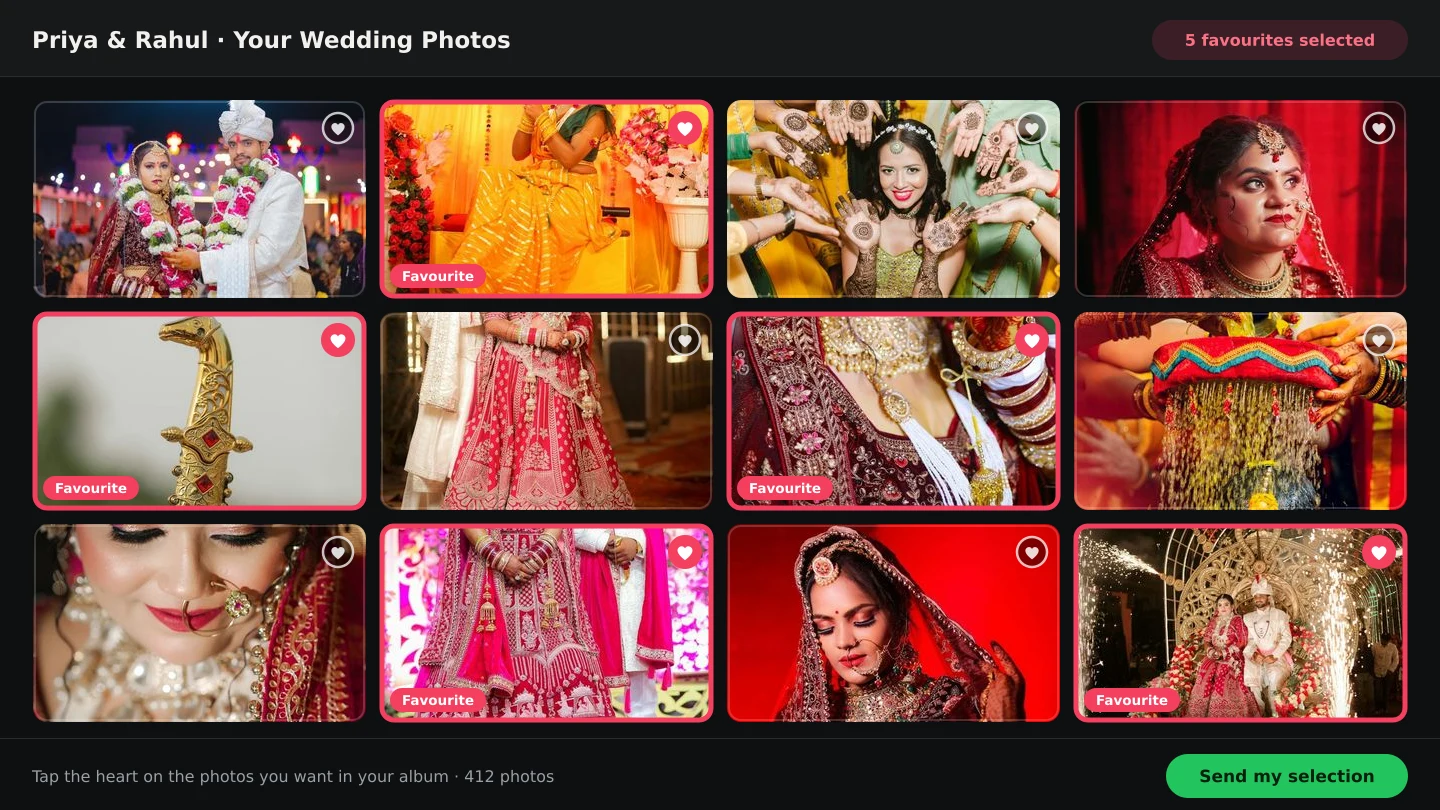
Cull the shoot, then click Share or QR on the gallery to send the client the link. They open it, tap the photos they want, press Done (N) to save each batch, and finish with Submit (N) → Submit Booking in the Submit Your Booking dialog. From then on the selection is locked, you can read the agreed set with the Selected filter, and it feeds delivery and the album.
What You Need
- The shoot uploaded and culled — the client should only see frames you are happy to show.
- One folder per function so the couple can work through the day folder by folder.
- The gallery link or QR code from the booking's
Booking Imagescard or the gallery toolbar. - Optional:
Customer Downloadswitched on if they should be able to download what they pick.
Why selection happens in the gallery
Selection is a conversation about which frames are keepers, and it works best where both sides look at the same thing. The gallery gives the couple one address with folder tabs, a status on every photo and the same counts you see; nothing needs to be emailed back and forth. Each frame carries Selected or Not Selected, the couple filters to review their set, and submission locks it so the agreed list cannot drift afterwards. What they mark is what you deliver, what Face Scan shows and what the album is built from.
Step by step: from link to locked set
- 1
Prepare the gallery
Cull the unusable frames first and confirm each folder tab has the right count. Turn on
Customer Downloadon the booking'sBooking Imagescard if they should take files themselves — the toast confirms Customer download is now enabled. - 2
Send the link or QR
In the gallery click
Share(the phone's share sheet, or the clipboard with Link copied to clipboard), orQRand thenCopy Link/Download QRfor something printed at the venue. - 3
The client picks
They open a folder, click the circle on each photo to stage it — a check appears in the corner — and press
Done (N)in the bottom bar to save. The frames flip to a greenSelectedbadge (toast: Images updated).Cancelclears the staging instead. - 4
They review the set
The
SelectedandNot Selectedfilters let them check what they have kept and recover anything missed.Select AllandUnselect Allhandle a whole view, for example a portrait folder they want completely. - 5
They submit
With at least one photo selected,
Submit (N)opensSubmit Your Booking, showingTotal ImagesandSelected Imagesbeside the warning You will not be able to change your selection after submitting. They confirm withSubmit Booking. - 6
You pick up the agreed set
The client now sees Your booking has been submitted. On your side the
Selectedfilter shows the agreed frames,Download Selected (N)is available after submission, and the same set flows into delivery and the album's photo picker.
Briefing the client in one message
- Open the link, choose a folder, tap the photos you want and press
Done— repeat until every folder is done. - Check the
Selectedfilter; anything missing can be tapped again before submitting. - When you are sure, press
Submit— the set cannot be changed after that. - Use
Scanif you would rather jump straight to your own photos in a 3,000-frame gallery.
Keep the message short and send it with the QR code for guests at the venue; the fuller version of this handover is in client photo selection.
Tips
- Send the link after the cull, not after the raw upload — the couple should never sort your rejects.
- Ask for the selection within a set window, and check the booking's photo period so the gallery does not expire mid-decision.
- Turn
Customer Downloadon before you send the link if they want files; it is one toggle rather than an email of attachments. - Use
Selected (N)in your own follow-ups: quoting the exact count keeps the conversation concrete.
Common Mistakes
Sending a raw, unculled gallery
Cull first. Blurs and blink shots in front of the couple cost trust and slow their decision.
Collecting picks over WhatsApp
Screenshots never reconcile with your gallery. One link, one
Selectedset, one submission gives you counts you can act on.Editing the gallery after submission
Uploads and deletions are locked at submission. Finish the gallery before you ask for the selection.
Forgetting downloads
If the couple expects files, enable
Customer Downloadbeforehand; without itDownload Selectedstays unavailable to them.
Frequently Asked Questions
Does the client need an account?
No. The gallery link is enough; they can select and submit while logged out, and their picks are saved with the booking.
What if they submit too early?
Submission is final for them, so ask them to check the Selected filter first. If it happens, a super admin can still adjust the selection.
Can they download before submitting?
Yes, if Customer Download is on — they use Download Selected (N) while choosing. After submission it stays available to them and to you.
How do I know how many they picked?
The Submit (N) count, the Selected filter and the Selected Images row in the submit dialog all show the same number.
Related Guides
- How to Select Photos Manually in Smart Photo SelectionChoose photos by hand in the Smart Photo Selection gallery: folder tabs, the Selected and Not Selected filters, full-size preview, Select All and saving the selection.
- How to Cull Photos Before SelectionCull the raw shoot in Smart Photo Selection: review folders at full size, remove blinks, blurs and test frames, and keep the client's view clean before selection.
- How to Manage and Deliver Photo GalleriesRun a booking's gallery end to end: downloads, private mode, sharing by link or QR, ZIP delivery of the selected set and the photo period that governs expiry.
- How to Choose Photos for an AlbumPick the photos that go into the book: use client picks and folder filters in Album Studio's photo picker, and decide how many frames a sheet can hold.
Related Features
Further Reading
- The Client Photo Selection Workflow, Start to FinishHow client photo selection works online: share a gallery, let the client mark favourites, lock the set on submission and download exactly what they chose.
- How to Deliver Wedding Photos FasterShorten the gap between the wedding and the final handover: background uploads, an early cull, online selection, one gallery link and ZIP delivery.
- The Complete Wedding Photography WorkflowOne workflow from the wedding day to delivery: folder uploads, culling, client selection, face scan for guests, gallery delivery and album sheets.
Try It in Smart Photo Selection
Open Album Studio with a photographer account, pick a booking and follow the steps above on your own photos.