Photo Delivery
How Photographers Can Share Event Photos Using Booking QR Codes
A booking QR code is one image that replaces a long gallery link: the photographer generates it from the booking's photos, prints it at the venue or sends it in a chat, and every guest who scans it lands on that event's gallery in their phone's browser. This post walks through how the code is generated in Smart Photo Selection, what it actually opens, how the booking's access and privacy settings still apply, and where to place it so guests use it.
By Bhanwar Lal Kumawat · Founder & Full-Stack DeveloperUpdated Published 6 min readIn Photo Delivery
What a booking QR code is
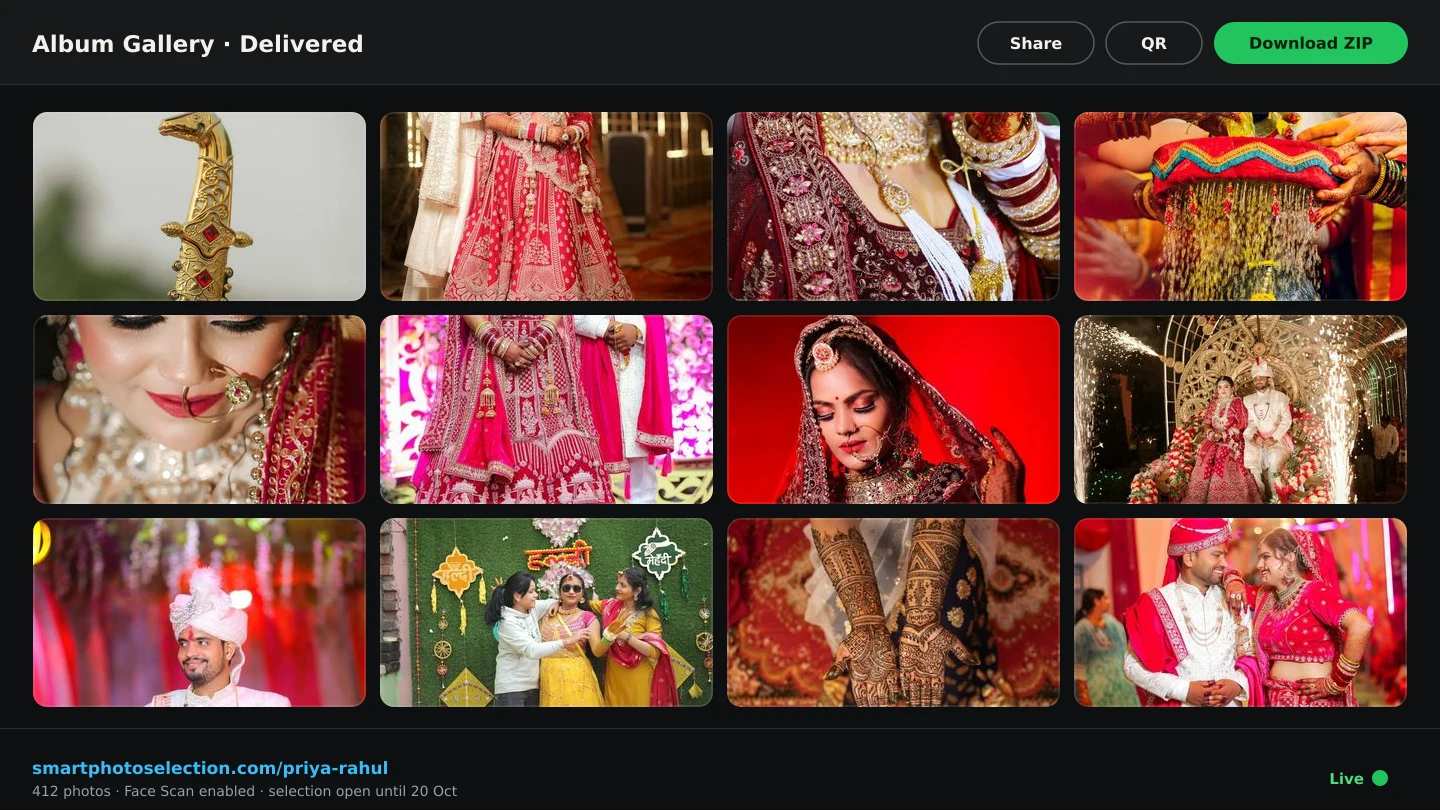
Every booking in Smart Photo Selection gets one gallery with a readable address built from your studio name and the booking ID - something like smartphotoselection.com/your-studio/images/abc123. The booking QR code is that address as a QR image: one code per booking, pointing at exactly the page you would otherwise paste into WhatsApp. Scanning it with any phone camera opens the photo gallery in the browser - no app to install, no account for the guest to create - with your studio name, Instagram link and phone number at the top.
How to generate the QR code
- 1
Open the booking's photos
From the booking's gallery or its Booking Images card, where the toolbar shows Total, Share, Scan and QR.
- 2
Click QR
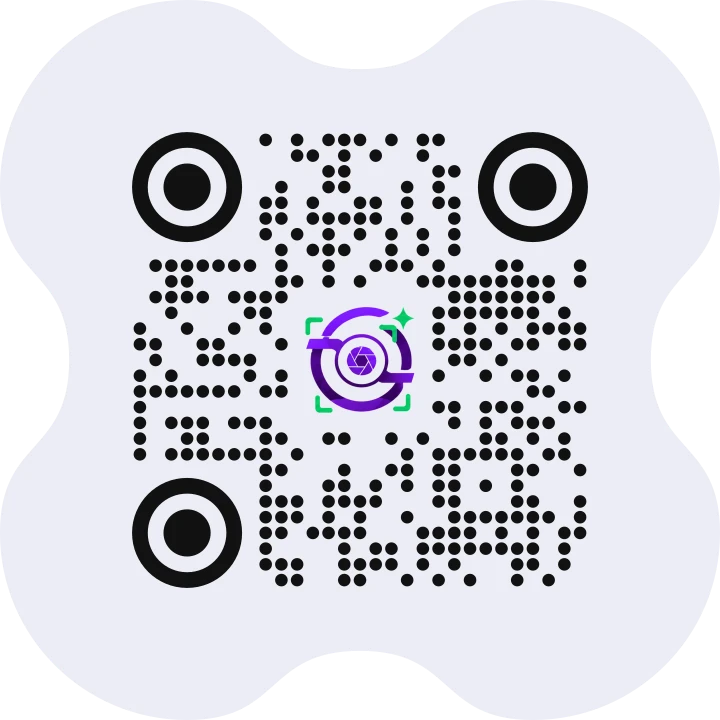
A dialog opens with the QR code for this booking's gallery and the full link underneath it, so you can always see where the code points.
- 3
Copy the link or download the code
Copy Link puts the gallery URL on the clipboard for a message; Download QR saves the code as a PNG file ready for print or a screen.
- 4
Share it
Print it for the venue, show it on a slideshow during the event, or send the link in the same chat you would have used anyway. The code and the link open the same page.
Invite guests by WhatsApp or email
You don't have to wait for guests to find the code. On the booking card, Add Guest (next to Share and QR) takes a WhatsApp number, an email, or both for each guest, plus an optional name. With an email, the invitation goes out automatically in your studio's name - a View Photos button, the gallery link and the booking QR code - and replies come back to you. For WhatsApp, the first guest's chat opens in your studio's WhatsApp as soon as you add them, with the gallery link typed in - and because the gallery's link preview is the booking QR code, WhatsApp usually shows the code right there. You press Send, and Send next takes you through the rest. Both carry this booking's own gallery link, the same address the QR code opens.
What happens when a guest scans it
The guest points the phone camera at the code (or opens it from a photo of it), the camera recognises the QR, and the gallery page opens in the browser. There they see your studio details, the folder tabs for each function with photo counts, and the All / Selected / Not selected filters when selection is on. From the same page a guest can tap Scan and run a face scan - the AI face scan that returns the photos they appear in - as long as the booking has an active photographer premium plan. For the full guest-side flow, see how to find photos with face scan.
Access and privacy settings still apply
The QR code travels to the gallery, and the gallery obeys the booking's settings:
- Private booking. A private gallery shows guests only the private notice with the face-scan option - the photos themselves stay behind the scan, not behind the QR code.
- Customer download. The Customer Download control decides whether the client can take files; printing a QR code does not change it.
- Subscription and photo period. An expired subscription or an expired photo period hides the gallery's tools, so time-limited galleries stop working as shareable codes on their own schedule.
- Face scan entitlement. The Scan button on the gallery runs face scan on photographer premium plans; without it, the scan page says scanning is unavailable for that gallery.
Where to put the code so guests actually use it
- At the entrance and near the seating chart. Guests arrive, scan, and have their gallery before the first course.
- On tables as a small card. A tent card with the code and one line - Scan for your photos - outperforms a verbal announcement.
- On the screen between programs. During the reception, a slide with the code reaches the whole room at once.
- In the event's WhatsApp group. Send the link (the same address as the code) the evening after, while the event is still fresh.
- On thank-you cards later. Couples often print the code on thank-you cards so relatives can fetch their photos months afterwards.
Link or QR: the same address, two habits
| Gallery link | Booking QR code | |
|---|---|---|
| Best for | Chats, email, anything with a keyboard | Venues, print, screens, no-typing moments |
| What the guest does | Taps a link | Points a camera |
| Typing required | Sometimes (if retyped or on desktop) | None |
| Where you get it | Share button on the booking's photos | QR dialog: Copy Link or Download QR (PNG) |
| Points to | The booking's gallery URL | The same booking's gallery URL |
| Privacy | The booking's access settings | The same booking's access settings |
How it simplifies event photo sharing
Manual sharing scales badly: every guest who wants photos costs a message, and every event repeats the cycle. One code printed once answers the whole room, and the gallery it opens is the same one that already runs client selection and guest face scan - there is no second system to maintain and no re-upload. For a 300-guest reception, the practical difference is that photo sharing becomes a sign at the door instead of a two-week inbox. Photographers running larger events can see the same pattern applied end to end in event photography workflows, and the wider delivery chain in the fastest way to share and select wedding photos online.
A short checklist before the event
- Upload the event (or at least a first batch) so the gallery is not empty when guests scan.
- Decide the access settings: private or not, customer download on or off.
- Generate the QR from the booking's photos, download the PNG, and send it to the printer or the venue contact.
- Test-scan the printed code with your own phone before the event starts.
- Mention the code once on stage or in the group chat - a code nobody knows about gets no scans.
booking QR codeevent photo sharingphoto gallery sharingevent photography
Frequently Asked Questions
How do I generate a QR code for a photography booking?
Open the booking's photos - in the gallery or the Booking Images card - click QR, then Copy Link or Download QR. The dialog always shows the gallery URL the code points to.
Where does the booking QR code take guests?
To that booking's gallery on smartphotoselection.com, opened in the phone's browser: no app, no guest account, with your studio details at the top.
Does scanning the code expose private photos?
No. The code opens the gallery URL you would share anyway; the booking's access and privacy settings decide what a guest sees. A private gallery shows only the face-scan gate.
Can guests select or download photos from the QR code?
The gallery it opens is the same client gallery: selection works as usual, and downloads follow the booking's Customer Download setting.
Does the QR code include face scan?
The gallery it opens has the Scan button; face scan itself runs on photographer premium plans for that booking. See how face scan works.
Can I use the same code for next year's event?
No - the code belongs to one booking. Each event gets its own booking, gallery and QR code.
Related Articles
- The Fastest Way to Share and Select Wedding Photos with Clients OnlineThe fastest wedding photo selection: share one client gallery link, let clients mark favourites online, lock the set on submit and download the ZIP.
- How to Deliver Wedding Photos FasterShorten the gap between the wedding and the final handover: background uploads, an early cull, online selection, one gallery link and ZIP delivery.
- How AI Face Scan Helps You Find Wedding Photos FasterAI face scan helps wedding guests find their photos faster: scan your face in the phone browser and get the photos you appear in from the event gallery.
- Face Scan: Find Any Person's Photos in an Event GalleryHow a face scan photo finder works: a guest scans their face in the phone browser and sees only the event photos they appear in, with no app and no account.
Step-by-Step Guides
- How to Manage and Deliver Photo GalleriesRun a booking's gallery end to end: downloads, private mode, sharing by link or QR, ZIP delivery of the selected set and the photo period that governs expiry.
- How to Find Photos With Face ScanSet up and use Face Scan in Smart Photo Selection: share the gallery link or QR code, let a guest scan their face in the browser and show the photos they appear in.
Related Features
Design Your Next Album in Smart Photo Selection
Generate spreads from a booking's photos, refine them in the layer-based editor and export print-ready files.