Guides
Smart Photo Selection Guides
Practical, step-by-step instructions for designing, editing and exporting wedding albums in Smart Photo Selection. Each guide uses the button and menu names you see in the app, explains why each step matters for print, and lists the mistakes to avoid. For background reading on album design, see the Smart Photo Selection blog; to see the workflow end to end, read how Smart Photo Selection works.
Create an album
From a booking's photos to designed spreads at your lab's size.
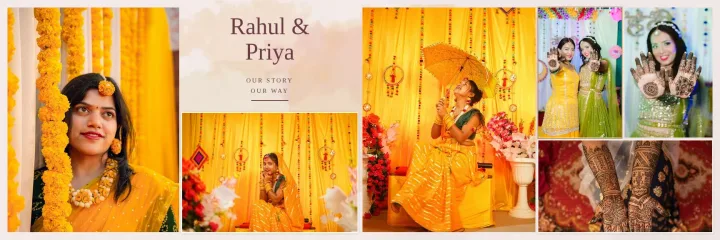 How to Create a Wedding Album With AIStep-by-step: pick a booking, run the AI photo selection, choose a size and design style, generate the spreads, then review and export your wedding album.
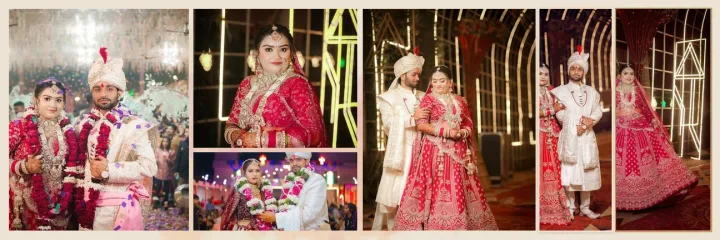 How to Design a 12 × 36 Wedding AlbumSet up a 12x36 wedding album at the right DPI, pick templates that suit the 3:1 spread, keep faces off the fold and export 10,800 × 3,600 px sheets.
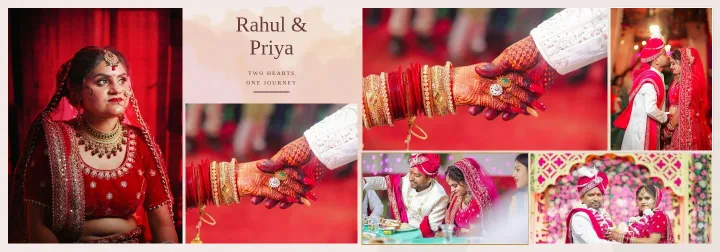 How to Design a 14 × 40 Wedding AlbumCreate a 14x40 wedding album in Smart Photo Selection: 12,000 × 4,200 px at 300 DPI, photo resolution checks, layouts that use the extra height, and fold-safe export.
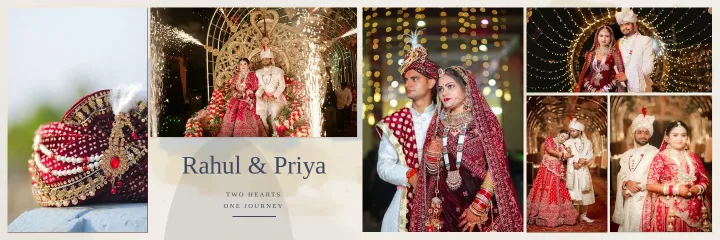 How to Upload and Use Your Own PSD Album TemplateUpload a PSD album design to Smart Photo Selection, verify the detected photo slots, set the fill order and reuse the template for every wedding, with automatic photo mapping.
Layout and design
Fold-safe placement, photo counts and exposure designs.
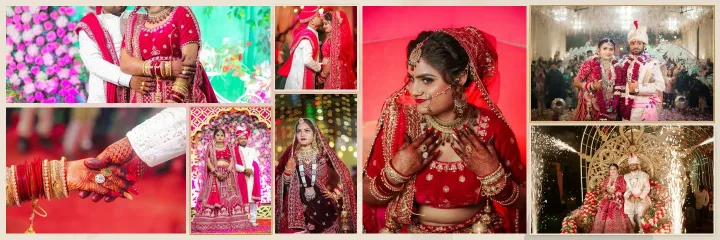 How to Keep Faces Off the Centre Fold of an AlbumWhy faces disappear into the binding, how Smart Photo Selection keeps photos and text off the centre fold, and how to check and fix spreads before you export them.
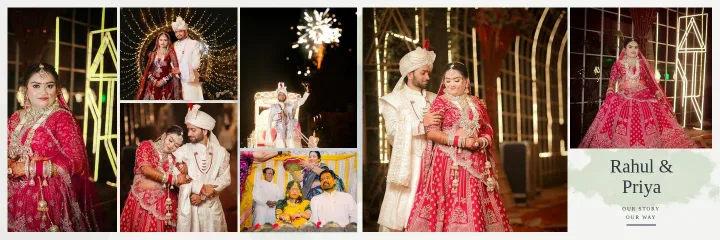 How to Arrange 7 Photos on a Wedding Album SpreadThree ways to split seven photos across a spread (3 + 4, 4 + 3 and 5 + 2), when to use each, and how to pick or generate a 7-photo layout in Smart Photo Selection.
 How to Create Double and Triple Exposure Album DesignsMake double and triple exposure wedding album spreads in Smart Photo Selection: let the generator build them, or blend a portrait into a scene yourself with layers and masks.
- How to Edit an AI-Generated Album DesignRefine AI-generated wedding album spreads: regenerate a sheet, change photos and crops, resize frames, edit text and exposure layers, and keep it all off the fold.
Editing, retouching and colour
The layer-based editor: masks, retouching tools and colour.
- How to Use Layers, Layer Masks and Clipping Masks in Smart Photo SelectionLearn how layers, layer masks, clipping masks and adjustment layers work in the Smart Photo Selection editor, with the exact menu names and shortcuts.
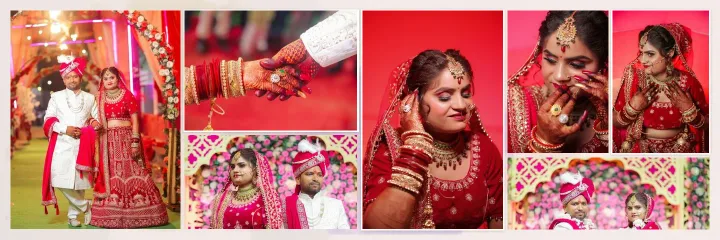 How to Retouch Skin Naturally in Wedding Photos With Smart Photo SelectionStep-by-step natural skin retouching in Smart Photo Selection: Spot Healing, Healing Brush, Clone Stamp and gentle dodge and burn that keep real skin texture.
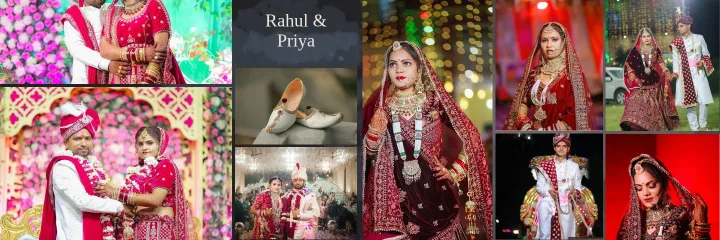 How to Colour Grade Wedding Photos in Smart Photo SelectionCorrect and grade wedding photos on an album sheet with Curves, HSL, Color Balance, Gradient Map and presets, then copy the look to every photo for consistency.
Print, export and troubleshooting
Getting files your lab can print, and fixing common problems.
- How to Prepare a Wedding Album for PrintA print checklist for Smart Photo Selection: resolution and DPI, low-ppi warnings, centre fold, trim and safe area guides, bleed, sRGB colour and what to ask your album lab.
- How to Export a Wedding Album as JPG, PNG or Layered PSDExport one album sheet or the whole album from Smart Photo Selection as full-resolution JPG, PNG or a verified layered PSD, and download everything as a ZIP for your lab.
 Troubleshooting Album Photos: Loading, Replacing and Export QualityFix common Smart Photo Selection problems: photos not loading, storage errors, replacing or rearranging photos, soft preview versus sharp export, and low-ppi warnings.
Photo workflow
Upload, select, cull, find people and deliver — the photo side of Smart Photo Selection.
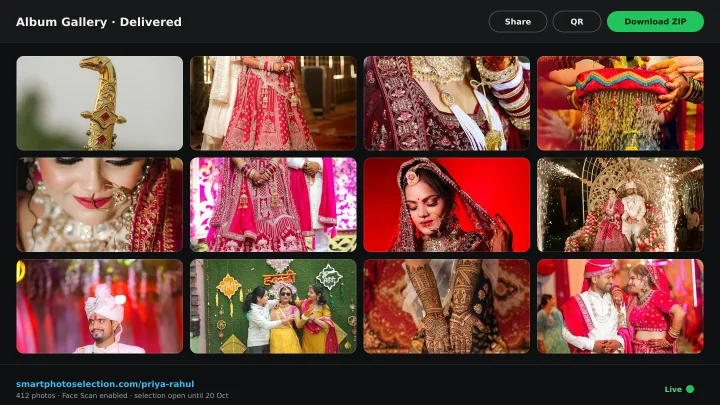 How to Upload and Organize Event PhotosUpload a full wedding shoot into Smart Photo Selection, keep one folder per function, recover failed uploads and check the gallery is organised before you cull.
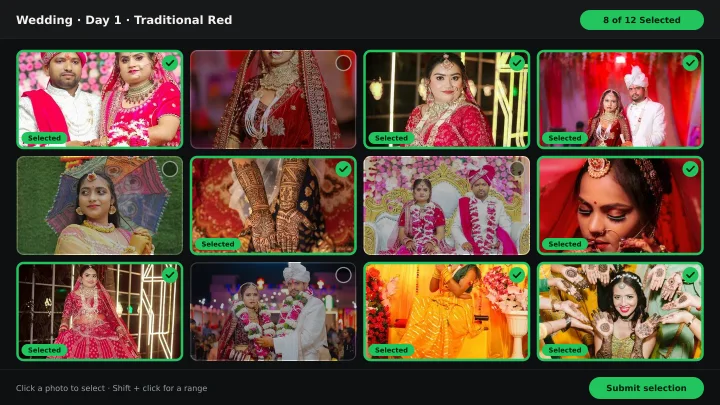 How to Select Photos Manually in Smart Photo SelectionChoose photos by hand in the Smart Photo Selection gallery: folder tabs, the Selected and Not Selected filters, full-size preview, Select All and saving the selection.
- How to Use AI Photo SelectionRun AI Photo Selection in Smart Photo Selection: set how many photos the album needs, rank the shoot by sharpness, exposure and faces, then adjust the shortlist by hand.
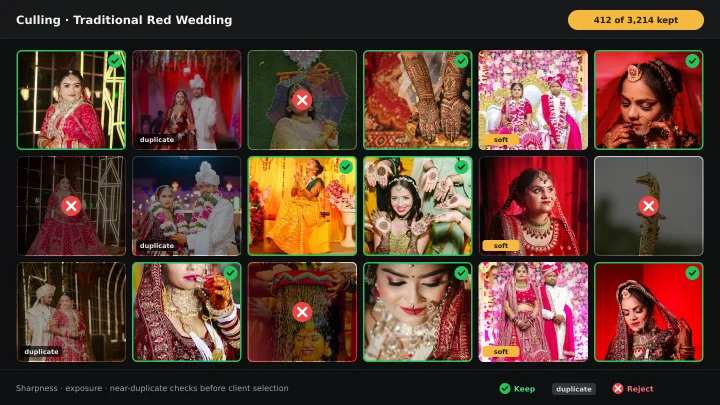 How to Cull Photos Before SelectionCull the raw shoot in Smart Photo Selection: review folders at full size, remove blinks, blurs and test frames, and keep the client's view clean before selection.
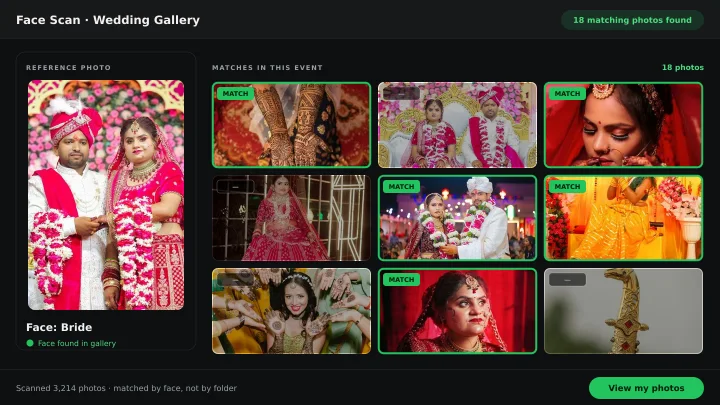 How to Find Photos With Face ScanSet up and use Face Scan in Smart Photo Selection: share the gallery link or QR code, let a guest scan their face in the browser and show the photos they appear in.
- How to Capture a Good Face Reference for a ScanGet a face scan that matches: how to position, light and hold the phone so Smart Photo Selection captures a clear reference of the guest's face in the browser camera.
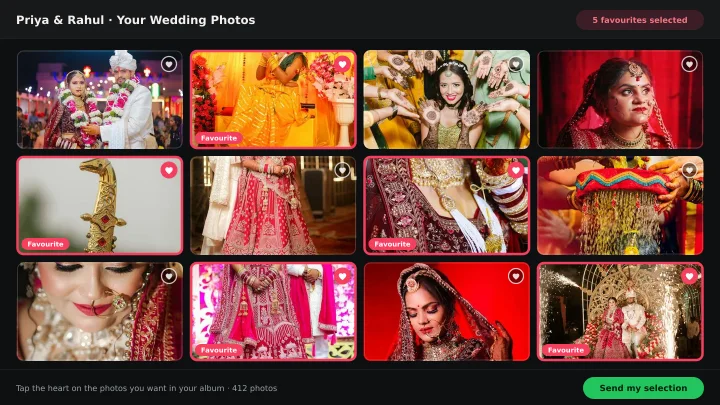 How to Send Photos to Clients for SelectionHand a gallery to the couple for photo selection: share the link or QR, let them mark frames with Done, then submit so the agreed set is locked for delivery.
- How to Manage and Deliver Photo GalleriesRun a booking's gallery end to end: downloads, private mode, sharing by link or QR, ZIP delivery of the selected set and the photo period that governs expiry.
Album workflow
From a finished selection to generated sheets open in the editor.
- How to Create an Album ProjectStart an album in Smart Photo Selection's Album Studio: name it, choose the AI, automatic or manual route, set the size, and manage projects from Recent albums.
- How to Choose Photos for an AlbumPick the photos that go into the book: use client picks and folder filters in Album Studio's photo picker, and decide how many frames a sheet can hold.
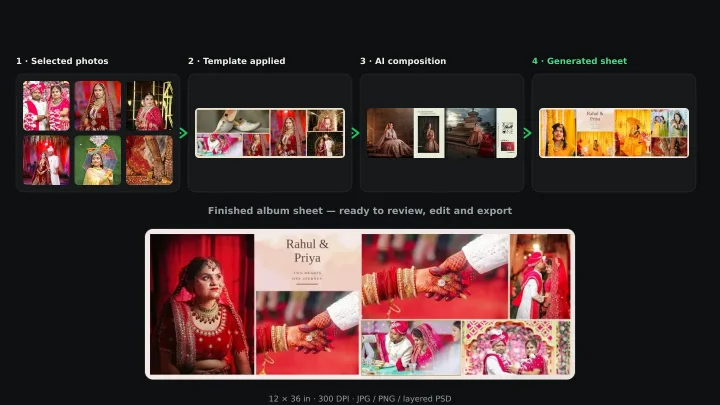 How Album Automation WorksUnderstand Album Automation: booking photos are read in sequence and mapped into the verified slots of your PSD design, sheet by sheet, for export.
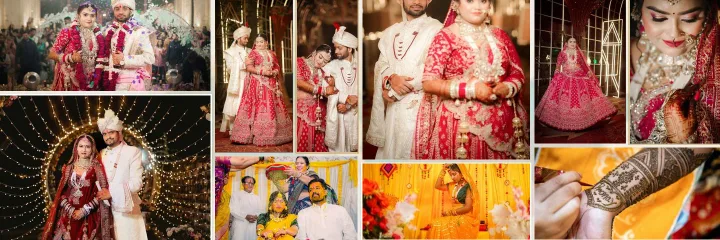 How to Choose an Album TemplatePick the right layout for a book: browse system templates, search your own PSDs, filter by photos per sheet and size, and start it with AI or the manual editor.
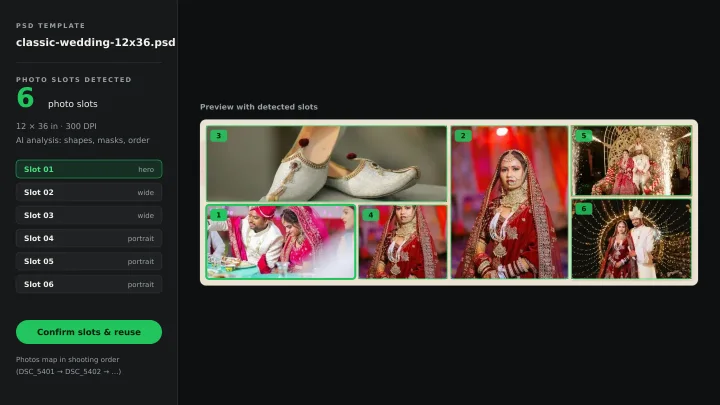 How PSD Template Slots Are AnalyzedUnderstand how Smart Photo Selection reads a layered PSD and detects its photo slots: analysis stages, confidence levels, and how to confirm or correct each slot.
- How to Map Photos to Template SlotsPlace every chosen photo into the right frame: how the mapping step fills slots in album order, swaps and replaces frames, and catches low-resolution photos.
- How to Generate Album SheetsRender the album into print files: pick JPG, PNG, Layered PSD, TIFF, PDF or WebP, pass the preflight checks, watch the job run, and download the sheets.
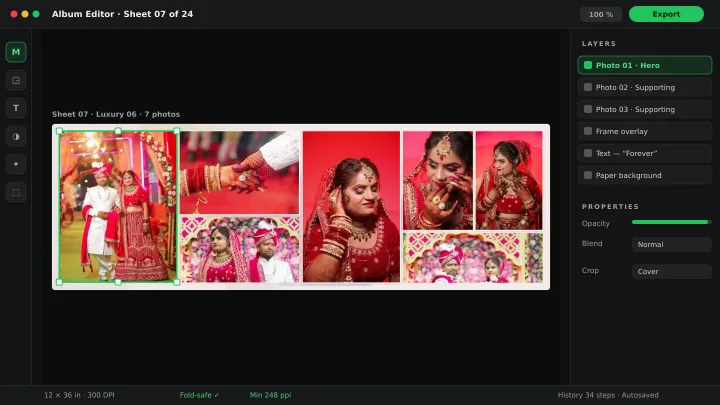 How to Edit an Album Sheet in the EditorHand-finish a sheet in Smart Photo Selection's Album Editor: place and swap photos in slots, crop, reorder layers, adjust tone, and save or export the sheet.
Explore the Features Behind the Guides
- AI Album GeneratorHow the AI selects photos and composes each spread.
- Professional Photo EditorLayers, masks, selections, retouching and colour tools.
- Wedding Album Templates400+ templates in 20 composition families plus earlier collections, from Cinematic to Premium Mixed.
- PSD Album AutomationReuse your own PSD designs with detected photo slots.