Smart Photo Selection guide
How to Manage and Deliver Photo Galleries
Run a booking's gallery end to end: downloads, private mode, sharing by link or QR, ZIP delivery of the selected set and the photo period that governs expiry.
By Smart Photo Selection TeamUpdated Published 4 min read
Short answer
Open the booking's Booking Images card to control delivery: Customer Download decides whether the client can fetch files, Private hides the gallery from the public link (toasts: Booking is now private / Booking is now public). The gallery itself gives you Total: N, Share, Scan and QR, folder tabs and filters, and Download Selected (N) — a ZIP for you, watermarked files for the client. The booking's photo period sets when images are deleted; Add 15 Days ₹50 or Add 30 Days ₹100 extends it.
What You Need
- A booking with its photos uploaded and, ideally, the client's selection submitted.
- An active photographer account for the booking so the gallery is not blocked by an expired subscription.
- The booking's event date and duration set — the photo period is calculated from them.
- Studio details on your profile (name, Instagram, phone), since the gallery prints them at the top.
What the gallery gives everyone
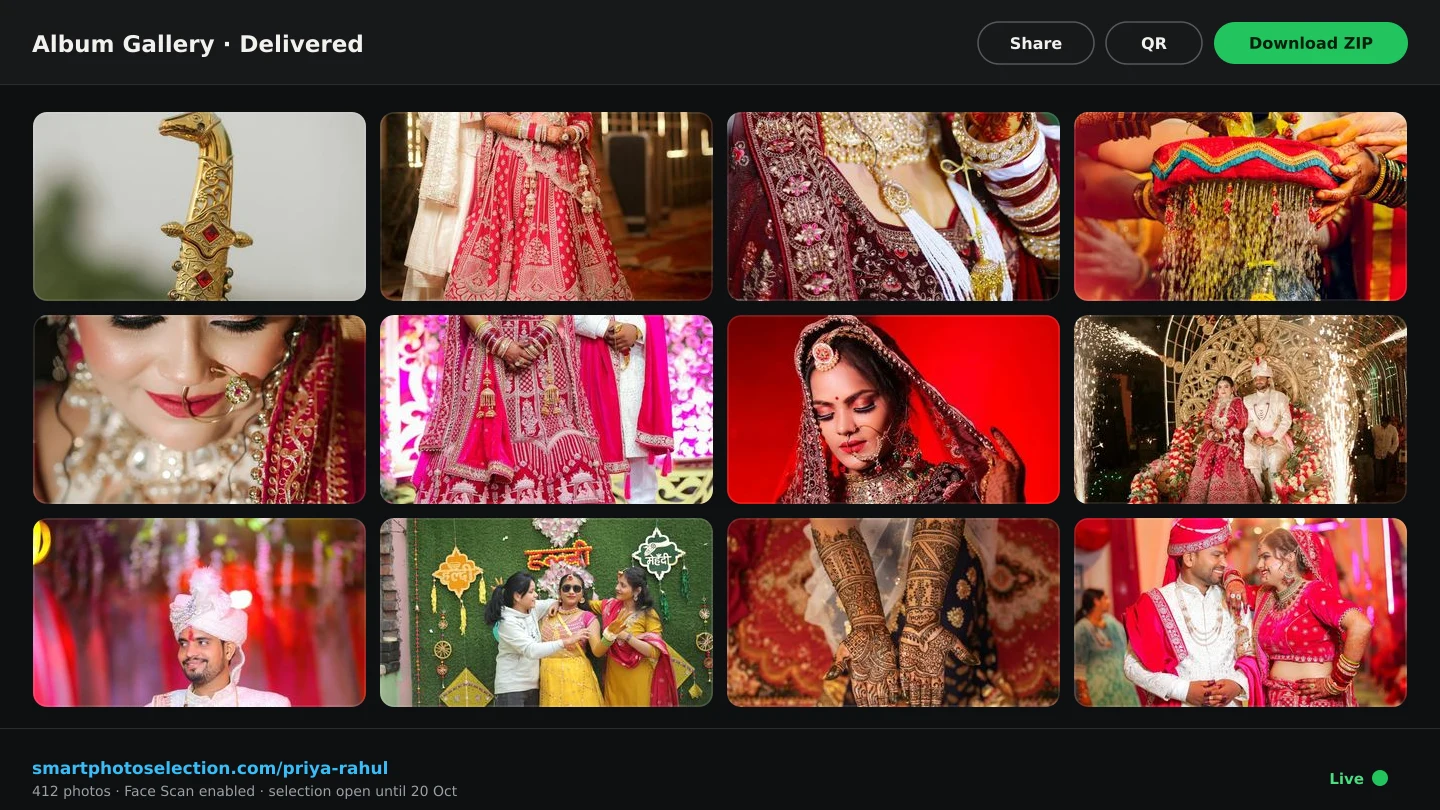
Every booking gets one gallery with a readable address built from your studio name and the booking ID, so the link is recognisable in a chat. Anyone opening it sees your studio name, Instagram link and phone number first, then the folder tabs with counts, the All / Selected / Not Selected filters, and the toolbar with Total: N, Share, Scan and QR. The same page carries client selection, guest Face Scan and delivery — there is no separate sharing tool to maintain.
Step by step: manage and hand over
- 1
Set the delivery controls
On the booking, use the
Booking Imagescard.Customer Downloaddecides whether the client can take files (toast: Customer download is now enabled / disabled), andPrivatetakes the gallery off public access (Booking is now private / Booking is now public). - 2
Share the gallery
Click
Sharefor the phone's share sheet or Link copied to clipboard, orQRfor the dialog withCopy LinkandDownload QR— print that QR at the venue so guests can open the gallery and run Face Scan. - 3
Deliver the agreed set
After submission, select the frames to hand over and click
Download Selected (N). As the studio you get the originals as a ZIP (Starting ZIP..., then All selected images downloaded); the client's download runs file by file with a progress dialog (Downloading Selected Images → Download Complete) and each image carries your studio watermark. - 4
Watch the size readout
Under the button the gallery shows Download: N images • 1.24 GB. If the client's size still shows (calculating...), wait for the server to finish measuring before they start the download.
- 5
Keep the gallery alive
The photo period runs from the event date plus the booking's duration. On the booking,
Add 15 Days ₹50orAdd 30 Days ₹100extends it (toast: 15 days added successfully!); once it expires the gallery's controls are hidden. - 6
Close the loop
Leave the gallery up until the album is printed and the couple has their files. Then
Privatekeeps the link dormant without deleting anything, and the period eventually clears the storage.
Keeping control of who sees what
| Control | Where | Effect |
|---|---|---|
Customer Download | Booking Images card | Client can (or cannot) download the selected set |
Private | Booking Images card | Public gallery link stops working until you switch it back |
Add 15 Days / Add 30 Days | Photo period | Extends the date after which the gallery controls close |
Submit (N) | Gallery | Locks the client's selection so it cannot drift |
For the guest-facing side of the same link — folder browsing and Face Scan — see find photos with Face Scan; the handover itself is covered in send photos for client selection.
Tips
- Send one link for everything: selection, downloads and Face Scan all live at the same address.
- Extend the photo period before a long album cycle — a 30-day wedding-to-print gap is normal, expiry is not recoverable.
- Check
Download: N images • sizeyourself before promising a delivery time on a large set. - Use
Privaterather than deleting photos when an event is finished but the couple may still ask for more.
Common Mistakes
Promising files before the size is ready
If the readout says (calculating...), the ZIP cannot start yet. Wait for the count, or download folder by folder.
Sharing a URL typed from memory
Gallery addresses include the booking ID. Always use
Shareor theQRdialog so the link is exact.Letting the photo period lapse
After expiry the gallery's controls disappear.
Add 15 Days ₹50/Add 30 Days ₹100on the booking keeps the delivery open.Sending raw files instead of the gallery
A file-transfer link loses the branding, the counts, the selection and the scan. Deliver through the gallery and download the ZIP yourself for the lab.
Frequently Asked Questions
Can I turn downloads off later?
Yes — Customer Download on the Booking Images card toggles at any time, with a toast confirming the new state.
What does `Private` change?
It takes the gallery off public access (Booking is now private). Switch it back for Booking is now public; photos and selections are untouched.
How do I get files for the lab?
Select the set and use Download Selected (N) as the studio: you get the originals as a ZIP, at the album's agreed sizes if you have already exported sheets.
What happens when the photo period ends?
The gallery closes for that booking. Extend it from the booking before the date passes — see delivery workflow for a timeline.
Related Guides
- How to Send Photos to Clients for SelectionHand a gallery to the couple for photo selection: share the link or QR, let them mark frames with Done, then submit so the agreed set is locked for delivery.
- How to Find Photos With Face ScanSet up and use Face Scan in Smart Photo Selection: share the gallery link or QR code, let a guest scan their face in the browser and show the photos they appear in.
- How to Upload and Organize Event PhotosUpload a full wedding shoot into Smart Photo Selection, keep one folder per function, recover failed uploads and check the gallery is organised before you cull.
- How to Export a Wedding Album as JPG, PNG or Layered PSDExport one album sheet or the whole album from Smart Photo Selection as full-resolution JPG, PNG or a verified layered PSD, and download everything as a ZIP for your lab.
Related Features
Further Reading
- How to Deliver Wedding Photos FasterShorten the gap between the wedding and the final handover: background uploads, an early cull, online selection, one gallery link and ZIP delivery.
- A Wedding Album Delivery Workflow for PhotographersA practical album workflow for wedding photographers: client photo selection, design, review rounds, revisions, lab checks, printing and final delivery.
- The Client Photo Selection Workflow, Start to FinishHow client photo selection works online: share a gallery, let the client mark favourites, lock the set on submission and download exactly what they chose.
Try It in Smart Photo Selection
Open Album Studio with a photographer account, pick a booking and follow the steps above on your own photos.