Album Automation
From Selected Photos to a Finished Album
The submitted selection is the starting line for an album, not the album itself. Between the two sit a series of concrete decisions: how many photos per sheet, which template or automation route to use, what to review, what to edit and how to export. This post walks the path from a locked client selection to print-ready sheets, with the checkpoints that prevent a redesign halfway through.
By Smart Photo Selection TeamUpdated Published 4 min readIn Album Automation
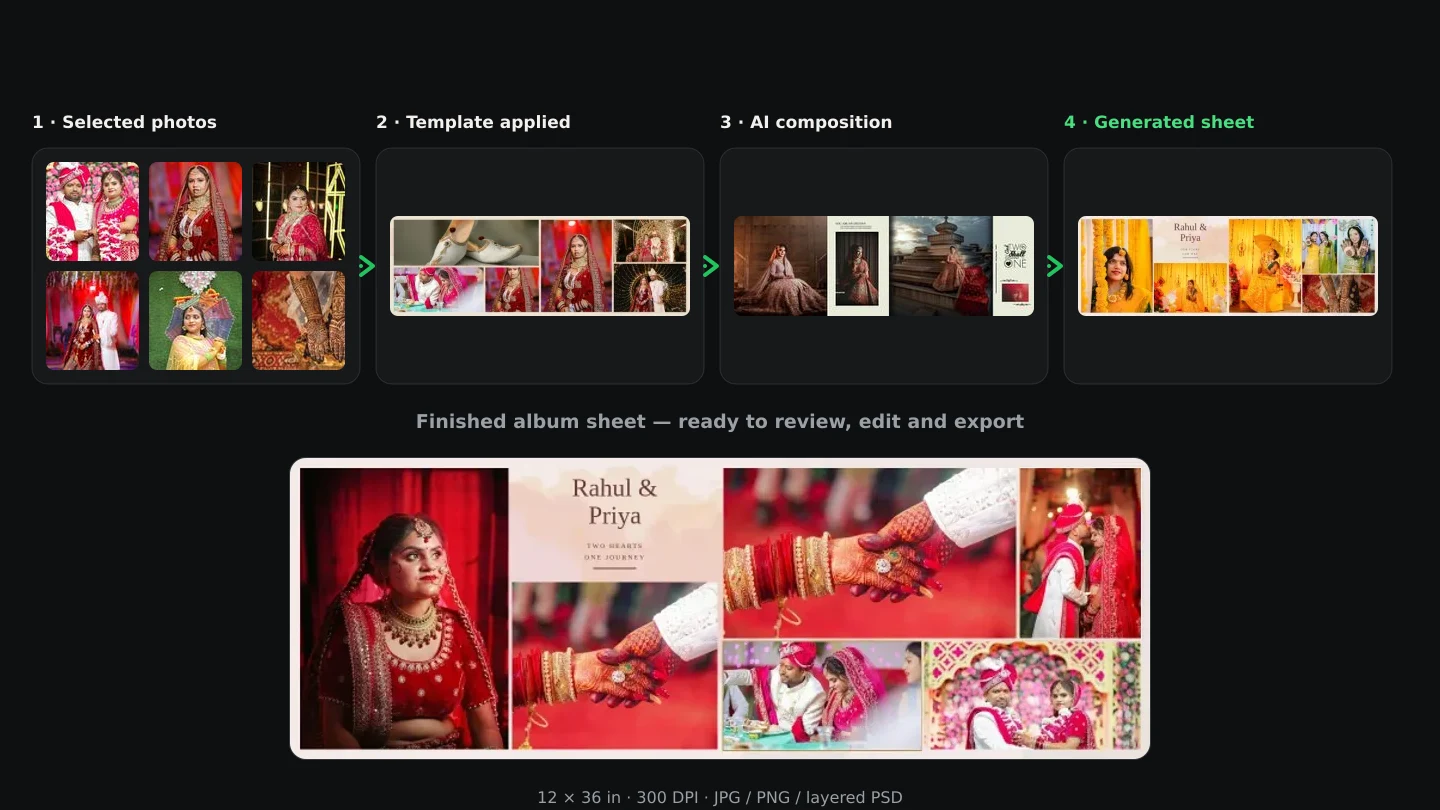
The path, step by step
- Create the project from the booking, so the album reads the booking's photos without a second upload.
- Choose the photos for the album: start from the submitted selection, then add or remove deliberately.
- Pick the route: an AI design, a library template, or your own PSD template through album automation — all three read the booking's photos and produce editable sheets.
- Set the size and photos per sheet, then generate the sheets.
- Review the whole album in order, checking sequence, crops, folds and any resolution flags.
- Edit what is wrong in the editor: swap a photo, adjust a crop, add names and dates.
- Export each sheet at full size as JPG, PNG or a layered PSD for the lab.
Choosing the photos for the album
The selection is usually larger than the album can hold well, so this is a second, smaller cull with a different purpose: not “is this frame usable?” but “does this moment belong in the book?” Keep the must-haves from the couple's list, drop the near-duplicates that both of you marked, and make sure the functions of the day each get representation. The choose photos for an album guide walks through it.
How many photos per sheet
More photos per sheet means each one reads smaller and the spread tells a busier story; fewer means each frame carries more weight. Library templates hold between 5 and 10 photos, and if you are choosing by hand, how many photos per spread works through the trade-offs. If the couple selected 8 photos for a particular sequence, an 8-photo template maps them straight in — one photo per slot, nothing repeated.
Which route to build the sheets with
| Route | Choose it when | Where you review |
|---|---|---|
| AI Album Generator | You want a varied first draft from the selection | Every generated sheet, regenerated individually |
| Library template | You want a consistent style at a chosen photo count | Each filled template sheet |
| Your PSD via album automation | You already own the house layouts | The slot mapping before generation |
Review the album as a client would
- Sequence: does the book move through the day in an order that reads?
- Hierarchy: does each sheet have a clear lead photo, or are seven frames fighting equally?
- Faces and folds: nothing important sits across the centre fold; the fold-safe zone is 0.125 in on each side.
- Resolution: resolve any photo flagged below 200 ppi, or consciously accept it.
- Variety: two consecutive sheets should not repeat the same arrangement.
Edit only what needs editing
Open a sheet in the album editor when a photo is in the wrong frame, a crop cuts badly, or a name needs adding. Swap, adjust and move on — regenerate a sheet only when the whole layout should change, because a regeneration produces a genuinely different composition rather than a tidy-up. The edit an album sheet and edit AI-generated designs guides cover the common fixes.
Export and hand over
Export each sheet at full size from the original photos, as JPG, PNG or a layered PSD. Files are RGB — there is no CMYK conversion — and most album labs accept RGB and convert themselves, so confirm with yours. Check the print guides, the fold and any flagged photos before ordering; the print preparation guide and export formats guide have the details. In Smart Photo Selection, Album Studio stores projects on the device you use rather than in the cloud, so exported sheets are your backup — keep them with the rest of the client delivery.
album workflowphoto selectionalbum designexport
Frequently Asked Questions
Do I have to use only the couple's selected photos?
No. Their selection is the starting point; add or remove photos deliberately, and record any addition as a change rather than a quiet edit.
Where do the photos come from?
From the booking. The album project reads the photos already uploaded for that booking, so there is no second upload.
What if the selection has more photos than the album can hold?
Make a second, smaller cull for the book: keep the must-haves, drop near-duplicates, and check how many photos each sheet can carry before committing.
Can I mix templates and AI sheets?
Yes. Every sheet is an editable document, so one project can hold generated sheets, filled templates and sheets built from your own PSD designs.
Are exported sheets print-ready?
Treat them as ready only after you check the resolution flags, the fold, the safe area and your lab's specification.
Related Articles
- What Is Wedding Album Automation?Wedding album automation explained: upload a PSD template once, confirm the photo slots, and map every wedding's photos into finished sheets automatically.
- The Client Photo Selection Workflow, Start to FinishHow client photo selection works online: share a gallery, let the client mark favourites, lock the set on submission and download exactly what they chose.
- How AI Chooses Photos and Album LayoutsWhat Smart Photo Selection's AI measures — sharpness, exposure, faces, orientation and duplicates — and how those signals become a hero photo and a balanced spread.
- The Complete Wedding Photography WorkflowOne workflow from the wedding day to delivery: folder uploads, culling, client selection, face scan for guests, gallery delivery and album sheets.
- 12 × 36 vs 14 × 40 Wedding Album: Which Size Should You Offer?12x36 vs 14x40 wedding albums compared: page size, ratio, pixels at 300 DPI, photo resolution needed and which layouts and clients each size suits best.
- Bleed, Safe Area and the Centre Fold in Wedding AlbumsWhat bleed, trim, safe area and the centre fold mean for wedding album spreads, how binding affects the gutter, and how to keep faces and text safe.
Step-by-Step Guides
- How to Create an Album ProjectStart an album in Smart Photo Selection's Album Studio: name it, choose the AI, automatic or manual route, set the size, and manage projects from Recent albums.
- How to Choose Photos for an AlbumPick the photos that go into the book: use client picks and folder filters in Album Studio's photo picker, and decide how many frames a sheet can hold.
- How to Generate Album SheetsRender the album into print files: pick JPG, PNG, Layered PSD, TIFF, PDF or WebP, pass the preflight checks, watch the job run, and download the sheets.
- How to Edit an Album Sheet in the EditorHand-finish a sheet in Smart Photo Selection's Album Editor: place and swap photos in slots, crop, reorder layers, adjust tone, and save or export the sheet.
Related Features
Design Your Next Album in Smart Photo Selection
Generate spreads from a booking's photos, refine them in the layer-based editor and export print-ready files.