Face Scan
How to Find Bride and Groom Photos Faster
The couple's photos are the ones you need most often — for the album cover, the album sequence, the thank-you cards and the families asking first — and they are scattered across every folder of a 3,000-photo wedding. Structure finds them for you: one folder per function, selection marks for approved frames, and a face scan that pulls every photo of one person out of the whole gallery. This post shows how to use all three together.
By Smart Photo Selection TeamUpdated Published 4 min readIn Face Scan
Why the couple's photos are hard to find
They appear everywhere: getting-ready frames, the ceremony, every group photo, the entrance, the first dance and a hundred candids during dinner. Across four folders and a few thousand photos, hunting them by scrolling means opening the same folders repeatedly, and any photo you did not notice on the first pass stays invisible. The fix is not more scrolling — it is giving the gallery a way to answer the question directly.
1. Structure: one folder per function
Upload haldi, mehendi, ceremony and reception into separate folders inside the booking, and the gallery shows a count for each. The couple's formal portraits sit in one folder, their candids in another. Structure does not find a person, but it narrows 3,000 photos to a few hundred in one click, and it is the first thing to check before anything cleverer. See upload and organise event photos.
2. Marks: filter to what has been chosen
As the couple selects, every photo carries a selected or not-selected status, and the gallery filters to either view. Once the selection is submitted, filtering to selected gives you the agreed set — which usually contains most of the frames you will need for the album. It is the fastest route when the question is “which photos did they choose?”, and it works the moment they submit.
3. Faces: search for a person
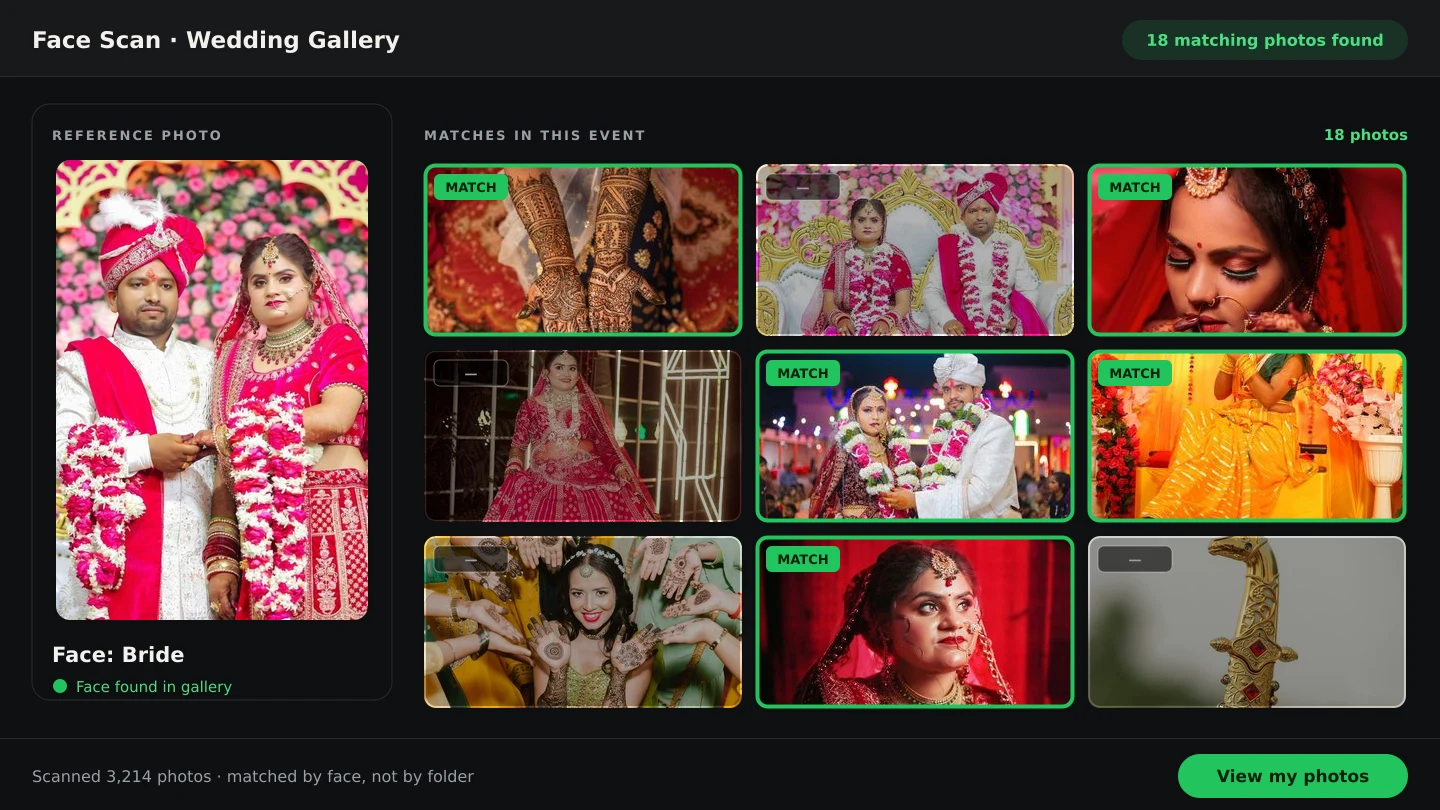
When the question is “where is the bride in this gallery?”, structure and marks are not enough. The face scan photo finder scans a face in the phone's browser and returns the photos that person appears in from the whole booking — every folder at once. Because each booking in Smart Photo Selection has its own scan page, the search stays inside this wedding. The couple, a parent or a member of the wedding party can run it themselves from the gallery link or QR code; scan the bride, review the results, then scan the groom, and the photos both families ask for first are covered in two short passes.
Which method to reach for
| Question | Best route | What you get |
|---|---|---|
| Which function was that in? | Folders | A few hundred photos in one click |
| Which photos were approved? | Selected filter | The couple's submitted set |
| Where is this person? | Face scan | Every photo of them across all folders |
| Which frames did we keep? | Selection plus archive | The ZIP you downloaded after submission |
Turning the results into an album
The couple's submitted selection is the natural starting point for the album: open Album Studio from the booking, choose the photos, and let the generator or a template lay them out. If a must-have portrait was never marked, add it deliberately rather than quietly — an album built from an agreed list avoids the redesign that follows a late swap. See how to go from selected photos to a finished album.
A repeatable routine
- Upload each function into its own folder as the shoot completes.
- Cull so the couple's search is not slowed by rejects.
- Share one gallery: the couple selects, guests scan.
- Filter to the submitted selection and download the ZIP as your working set.
- Run a face scan for any specific person a family asks about after the event.
- Start the album from the submitted selection, recording any additions as changes.
face scanwedding galleryphoto searchworkflow
Frequently Asked Questions
Can the bride or groom use the face scan themselves?
Yes. The scan runs from the booking's own link or QR code in a phone browser, so anyone with the link can find one person's photos without an account.
Does the face scan search every folder?
Yes. It matches against the photos uploaded for that booking, whichever folder they sit in.
What if a photo was never uploaded?
Nothing can find it. Upload the full shoot first; the scan, the selection and the gallery all read the same photos.
How do I give the couple their favourites?
They download once their selection is submitted, if you have turned client downloads on; you can also download the set as a ZIP and deliver it yourself.
Can I find photos of a whole family at once?
Scan one person at a time and combine the results yourself. Group photos will appear in each person's matches.
Related Articles
- Face Scan: Find Any Person's Photos in an Event GalleryHow a face scan photo finder works: a guest scans their face in the phone browser and sees only the event photos they appear in, with no app and no account.
- Face Scan vs Manual Photo Search: What Helps GuestsA clear comparison of face scan photo finding and manual gallery search: speed, coverage, privacy and what each approach means for photographers.
- The Client Photo Selection Workflow, Start to FinishHow client photo selection works online: share a gallery, let the client mark favourites, lock the set on submission and download exactly what they chose.
- From Selected Photos to a Finished AlbumTurn a couple's submitted selection into printable album sheets: create the project, choose the photos, generate, review, edit and export at full size.
Step-by-Step Guides
- How to Find Photos With Face ScanSet up and use Face Scan in Smart Photo Selection: share the gallery link or QR code, let a guest scan their face in the browser and show the photos they appear in.
- How to Upload and Organize Event PhotosUpload a full wedding shoot into Smart Photo Selection, keep one folder per function, recover failed uploads and check the gallery is organised before you cull.
- How to Capture a Good Face Reference for a ScanGet a face scan that matches: how to position, light and hold the phone so Smart Photo Selection captures a clear reference of the guest's face in the browser camera.
- How to Choose Photos for an AlbumPick the photos that go into the book: use client picks and folder filters in Album Studio's photo picker, and decide how many frames a sheet can hold.
Related Features
Design Your Next Album in Smart Photo Selection
Generate spreads from a booking's photos, refine them in the layer-based editor and export print-ready files.