Wedding album automation
Wedding Album Automation From Your PSD Templates
Upload a PSD album template once. The photo slots are detected, you confirm them, and from then on every wedding's photos are automatically mapped into the template in shooting order, across as many sheets as needed.
You review the mapping before anything is generated, and the final sheets use the original photos.
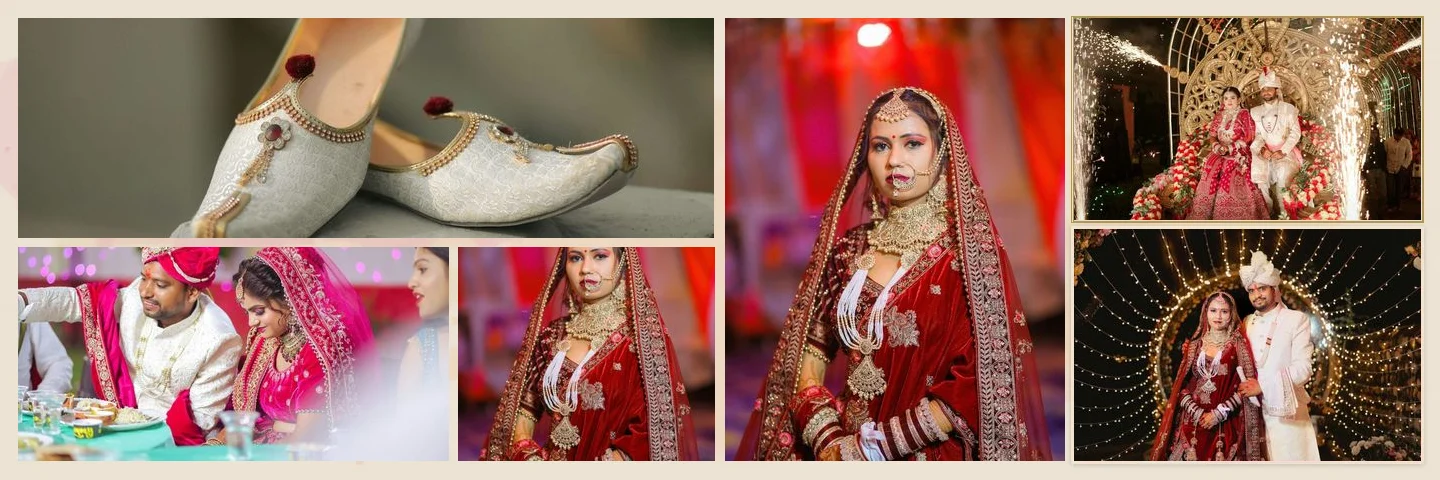
- Slot 01DSC_5401.jpg
- Slot 02DSC_5402.jpg
- Slot 03DSC_5403.jpg
- Slot 04DSC_5404.jpg
- Slot 05DSC_5405.jpg
- Slot 06DSC_5406.jpg
Sample layouts are shown with licensed sample wedding photos; your own photos take their place.
From PSD to Finished Sheets
- 01
Analyze the PSD
Layers, masks, clipping and smart objects are read in a background worker.
- 02
Detect photo slots
Likely photo areas are scored and shown with their confidence.
- 03
Map the photos
Photos fill slot 01, 02, … on sheet 1, then continue on the next sheets.
- 04
Preview and generate
Check each sheet, fix anything, then generate at full resolution.
Slot detection
How Photo Slots Are Detected
No particular layer names or sizes are required. Each layer is scored on evidence that it holds a photo, and the result is a suggestion you confirm, not a final answer.
Clipping masks
A shape with image layers clipped to it is the strongest signal.
Smart objects
Raster smart objects count as likely photo placeholders.
Placeholder shapes
Flat, opaque shapes in a frame position are considered.
Layer names
Names such as photo, image or placeholder add weight; background, frame or logo reduce it.
Confidence levels
High and medium slots are enabled (medium is marked “please check”); low ones are shown but off.
Your corrections
Confirm or exclude slots, draw missing ones, reorder and renumber.
Sequence Detection and Photo Mapping
The shooting sequence is read from file names such as DSC_5401.jpg, ignoring dates, times, resolutions and copy or edit suffixes. Photos without a number go to the end, and you can override the order of any photo.
A photo is never placed twice. With more photos than slots, a repeatable design continues on new sheets; with fewer, slots stay empty rather than being padded with repeats.
Quality Checks Before You Generate
Original files
Generation decodes the original photos and fails rather than falling back to a thumbnail.
Print resolution
The effective ppi of each photo in its slot is calculated, and photos below 200 ppi are flagged.
No stretching
Crops always keep the slot's ratio; you can pan and zoom within it.
Background jobs
Generation runs one sheet at a time with progress, and failed jobs can be retried.
Automation works with supported PSD structures. Unusual files may need a slot drawn by hand, and some files cannot be used at all; see PSD requirements.
FAQ
Common Questions
What is automatic wedding album design?
What if a photo slot is not detected?
Do I need to rename my PSD layers?
Can I change which photo goes in a slot?
Is my PSD uploaded to a server for processing?
Can automation fill more than one sheet?
- Wedding Album PSD TemplatesWhat a PSD needs, what is supported and what the PSD export contains.
- AI Album GeneratorDesigned wedding album spreads built from your selected photos.
- Professional Wedding Album EditorLayers, crops, colour, text and exports for every sheet.
- Wedding Album Templates150 templates in 10 styles, laid out for your album size.
- Guide: Upload a PSD TemplateUpload, verify slots and reuse your own PSD designs.
- Album Software for PhotographersHow studios, album designers and labs use the album workflow.
Automate Your Next Album
Upload your PSD template once and reuse it for every wedding.