Photo editor
Professional Photo Editor for Wedding Photographers
Smart Photo Selection includes a layer-based, Photoshop-style photo editor that runs in the browser: selections, layer and clipping masks, adjustment layers, healing and clone retouching, dodge and burn, curves, HSL and colour grading, on the photos of your album sheets.
It is built for finishing wedding albums, so every edit is rendered from your original files at full print size.
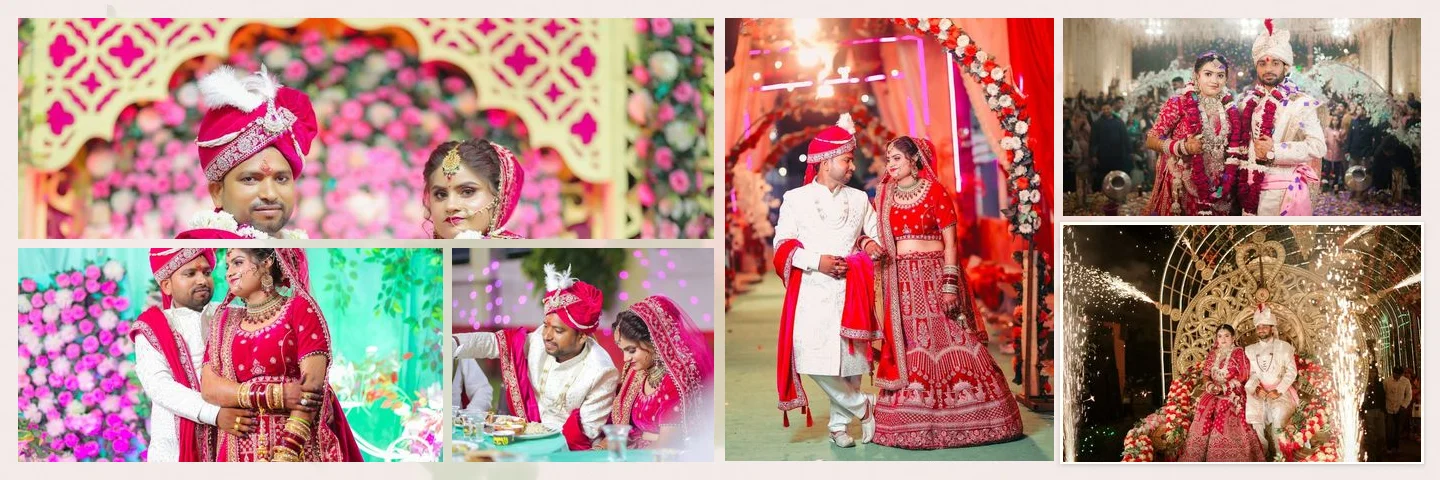
Sample layouts are shown with licensed sample wedding photos; your own photos take their place.
Layers
Layers, Masks and Blend Modes
Every photo, text, shape, paint stroke and adjustment is a layer you can reorder, hide, lock, duplicate and blend.
Layer types
Photo, text, shape (rectangle, ellipse, polygon, line), paint and adjustment layers.
Layer masks
Reveal all, hide all, reveal or hide a selection, paint on the mask, invert, disable or delete it. See how to use layers and masks.
Clipping masks
Clip a layer to the one below (Ctrl+Alt+G) so a photo takes the shape of a frame.
Adjustment layers
Apply curves or colour changes to everything below without touching the photos.
Blend modes and opacity
Normal, Multiply, Screen, Overlay, Soft Light, Luminosity and more, with opacity per layer.
Drop shadow
Soft shadows under frames for layered, mounted-print looks.
Selections
Marquee
Rectangular and elliptical marquee.
Lasso
Freehand lasso and polygonal lasso.
Magic wand
Select by colour with tolerance and contiguous options.
Refine
Add, subtract, inverse, feather, expand and contract; turn a selection into a mask.
Selections are made by hand: there is no AI subject or sky selection, generative fill or automatic background removal.
Retouching
Wedding Photo Retouching Tools
Retouch skin, stray hairs and distractions directly on the album sheet. Lower opacity and a soft brush keep skin texture; read how to retouch skin naturally for a step-by-step method and what to fix and what to leave.
Spot healing brush
Click or brush over blemishes; surrounding texture fills them in.
Healing brush
Heal from a source point you choose, for larger or patterned areas.
Clone stamp
Copy pixels exactly, for edges, fabric and repeating backgrounds.
Dodge, burn and sponge
Lighten, darken, saturate or desaturate locally, at low strength.
Blur, sharpen and smudge
Soften backgrounds, crisp eyes and details, or blend small areas.
Brush presets
Soft round, hard round, pencil, airbrush and a soft 30 % retouch brush, with size, opacity and hardness.
Colour
Colour Correction and Colour Grading
Correct each photo and keep a consistent grade across the album. Step-by-step instructions are in how to colour grade wedding photos; for choosing a look, read wedding colour grading styles.
Light
Exposure, brightness, contrast, highlights, shadows, whites and blacks.
Colour
Temperature, tint, vibrance, saturation and hue.
Curves and levels
Per-channel curves with presets, and levels with input and output points.
HSL, colour balance, selective colour
Fine control over skin tones, greens and skies, and over shadows, midtones and highlights.
Gradient map and tone effects
Gradient maps, posterize, threshold, invert and noise reduction.
Effects
Clarity, dehaze, vignette and film grain.
Presets
Import Lightroom/Camera Raw .xmp presets, .acv curves and .cube LUTs; unsupported settings are listed.
Consistent albums
Copy and paste adjustments, or paste them to every photo on the sheet.
Before and after
Hold the Before/After button (or the backslash key), or use the split view.
Workspace for Print
Rulers, guides, grid, snap
Inches-based rulers, draggable guides and a 1-inch grid.
Print guides
Trim at 0.125 in and a 0.375 in safe area from the sheet edge.
History
Undo and redo up to 100 steps per sheet, with a History panel.
Shortcuts
Customisable shortcuts, a Photoshop-style profile and a command palette (Ctrl+K).
Export
Full-resolution JPG, PNG or layered PSD. See how to export.
Saved on this device
Projects autosave in the browser (IndexedDB) on the device you use; they are not synced to the cloud.
Photoshop-style means familiar tools and shortcuts; Smart Photo Selection is not affiliated with Adobe. There are no layer groups, CMYK mode or cloud sync.
FAQ
Common Questions
Is it a full replacement for a desktop photo editor?
Are edits destructive?
Can I use my Lightroom presets?
Does it work on a tablet or phone?
Can I edit a photo outside an album?
- Professional Wedding Album EditorLayers, crops, colour, text and exports for every sheet.
- Double Exposure Album DesignsPortraits blended into scenes with gradient fades and painted edges.
- Guide: Retouch Skin NaturallyHealing, clone and dodge & burn without plastic skin.
- Guide: Colour Grade Wedding PhotosCurves, HSL, colour balance and gradient maps.
- How Smart Photo Selection WorksThe workflow from booking photos to print-ready export.
- Smart Photo Selection GuidesStep-by-step how-tos with the real button and menu names.
Edit Your Album Photos in Smart Photo Selection
Open a sheet, retouch and grade its photos, and export print-ready files.