Face Scan
Face Scan vs Manual Photo Search: What Helps Guests
Handing guests a gallery link and letting them scroll works — until the gallery holds two thousand photos and the guest appears in forty of them. A face scan flips the job: instead of a person searching photos, the photos are searched for the person. This post compares the two approaches honestly, including the cases where browsing is still the better answer, and what each one asks of the photographer.
By Smart Photo Selection TeamUpdated Published 4 min readIn Face Scan
What manual search looks like
Manual search is the default: a guest opens the gallery, scrolls, opens a photo, goes back, scrolls again. It works on a small shoot and on a gallery someone has already narrowed down. On a wedding or a conference gallery it degrades quickly — thumbnails are small, faces are far away, and the guest does not know which folder the interesting moment sits in. Someone who cannot find themselves soon asks the photographer instead.
What a face scan changes
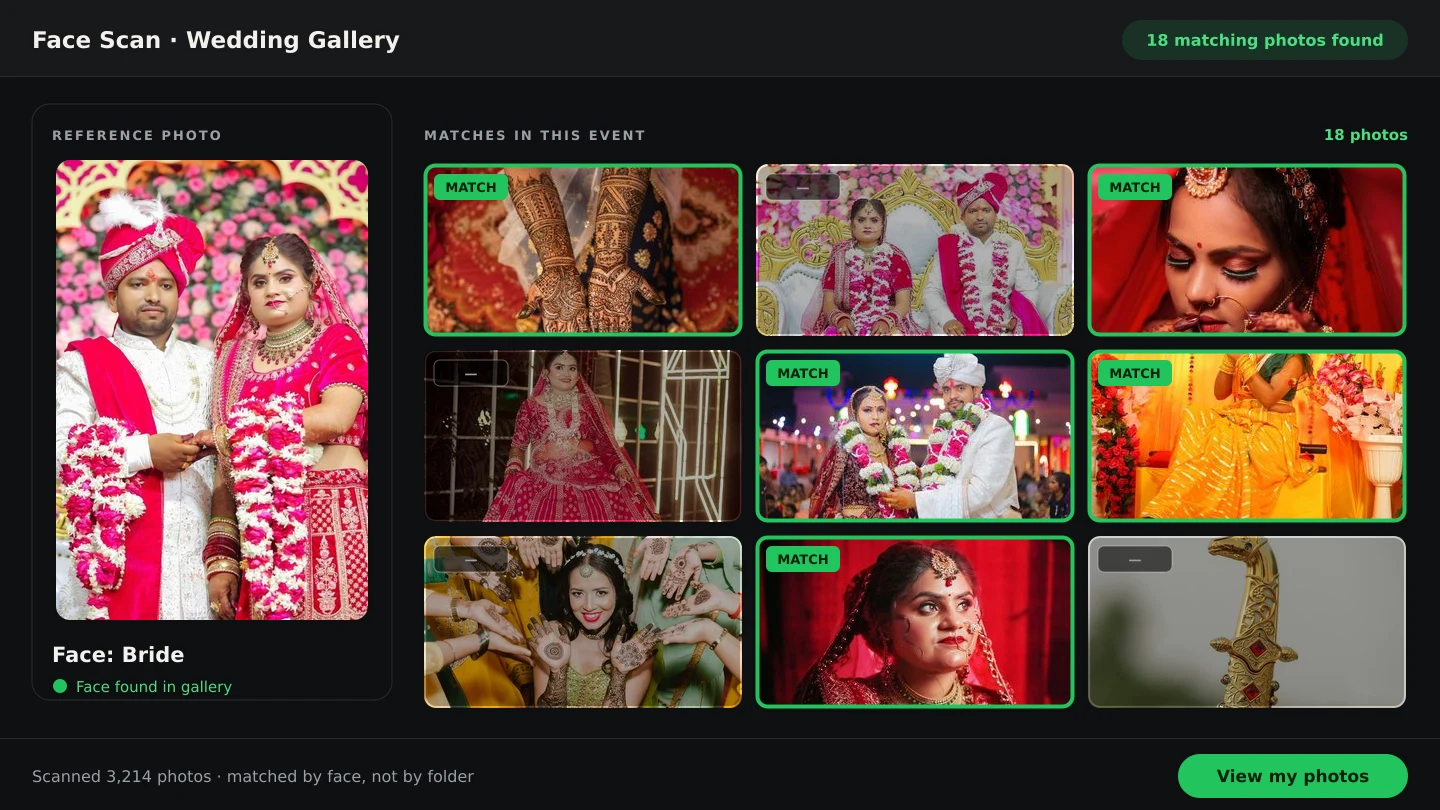
In Smart Photo Selection the guest scans their face once, in the phone's browser, and the face scan photo finder matches that scan against the photos uploaded for the event. The photos they appear in open on a results page. The direction of the work reverses: nobody is browsing a gallery looking for a person; the gallery is returning the photos of that person.
Side by side
| Manual gallery search | Face scan | |
|---|---|---|
| What the guest does | Scrolls and opens photos one by one | Scans their face once, then browses matches |
| Time on a large gallery | Grows with the number of photos | Mostly fixed: one scan, then results |
| Coverage | Only what the guest notices while scrolling | Every photo of them in the booking, including candids |
| Setup for the guest | A link | A link, plus camera permission |
| Setup for the photographer | Share the gallery | Share the same gallery's scan link or QR code |
| Works best for | Small galleries, choosing a set, reviewing a sequence | “Where am I?” on a large event gallery |
What guests experience
Both routes open from the same photo gallery, with your studio name, Instagram link and phone number at the top and no login required. The client or organiser still uses the gallery normally — filters, favourites, submission — while a guest who only wants their own pictures scans and goes straight to them. Matches come only from that event's photos, since each booking has its own scan page, and the scan runs in the guest's own browser. Nothing is downloaded or shared unless you have turned client downloads on for the booking.
When manual browsing is still better
- Choosing a set. The couple marking favourites needs the gallery, filters and submission, not a face match.
- Seeing the story. A sequence of the ceremony reads in order, folder by folder.
- Small galleries. For a shoot with a few hundred photos, scrolling is quick enough.
- Multi-person decisions. Group shots and table photos are easier to judge in context than as one person's matches.
What it means for the photographer
Offering a scan removes the most repetitive part of delivery: sorting photos for each attendee. One QR code at the venue serves hundreds of guests, and the requests that used to arrive as individual messages largely stop. It does not replace selection — the organiser or couple still chooses the photos they need — and it does not replace delivery, where you download the approved set as a ZIP. It replaces the hand-sorting in between.
Using both in one event
- Upload the event into folders and cull the rejects.
- Share one gallery link: the client selects and submits.
- Show the QR code so guests scan for their own photos.
- Download the submitted selection for editing, album and delivery.
- Keep the gallery available until its photo period ends, extending it if the client needs longer.
face scanphoto searchguest experienceevent photography
Frequently Asked Questions
Is a face scan a replacement for the gallery?
No. Both open from the same gallery. Selection, filters and downloads stay in the gallery; the scan is a shortcut to one person's photos.
Which is faster for a wedding of 2,000 photos?
For a guest looking for themselves, the scan: one scan returns their matches instead of 2,000 thumbnails to scroll. For the couple choosing favourites, the gallery is the right tool.
Do guests have to allow camera access?
Yes, the scan needs the camera in the browser. Anyone who would rather not use it can browse the gallery manually as before.
Can a guest share their results?
Matched photos open on a results page the guest can revisit and share with family or colleagues.
Is face scan available on every plan?
Face scan is available on photographer premium plans. The gallery, selection and downloads are part of the normal workflow.
Related Articles
- Face Scan: Find Any Person's Photos in an Event GalleryHow a face scan photo finder works: a guest scans their face in the phone browser and sees only the event photos they appear in, with no app and no account.
- How to Find Bride and Groom Photos FasterPractical ways to locate bride and groom photos across a wedding gallery of thousands: folder structure, selection marks and face-based search.
- How to Deliver Wedding Photos FasterShorten the gap between the wedding and the final handover: background uploads, an early cull, online selection, one gallery link and ZIP delivery.
- The Client Photo Selection Workflow, Start to FinishHow client photo selection works online: share a gallery, let the client mark favourites, lock the set on submission and download exactly what they chose.
Step-by-Step Guides
- How to Find Photos With Face ScanSet up and use Face Scan in Smart Photo Selection: share the gallery link or QR code, let a guest scan their face in the browser and show the photos they appear in.
- How to Capture a Good Face Reference for a ScanGet a face scan that matches: how to position, light and hold the phone so Smart Photo Selection captures a clear reference of the guest's face in the browser camera.
- How to Manage and Deliver Photo GalleriesRun a booking's gallery end to end: downloads, private mode, sharing by link or QR, ZIP delivery of the selected set and the photo period that governs expiry.
- How to Send Photos to Clients for SelectionHand a gallery to the couple for photo selection: share the link or QR, let them mark frames with Done, then submit so the agreed set is locked for delivery.
Related Features
Design Your Next Album in Smart Photo Selection
Generate spreads from a booking's photos, refine them in the layer-based editor and export print-ready files.