Album Automation
What Is Wedding Album Automation?
Wedding album automation means doing the album layout work once and then repeating it for every wedding: you upload a PSD template, confirm where its photo slots are, and from then on each booking's photos are mapped into those slots in shooting order, across as many sheets as the album needs. It is not a design replacement — it is the mechanical part of laying out a house style, done by software, with a review step before anything is generated.
By Smart Photo Selection TeamUpdated 4 min readIn Album Automation
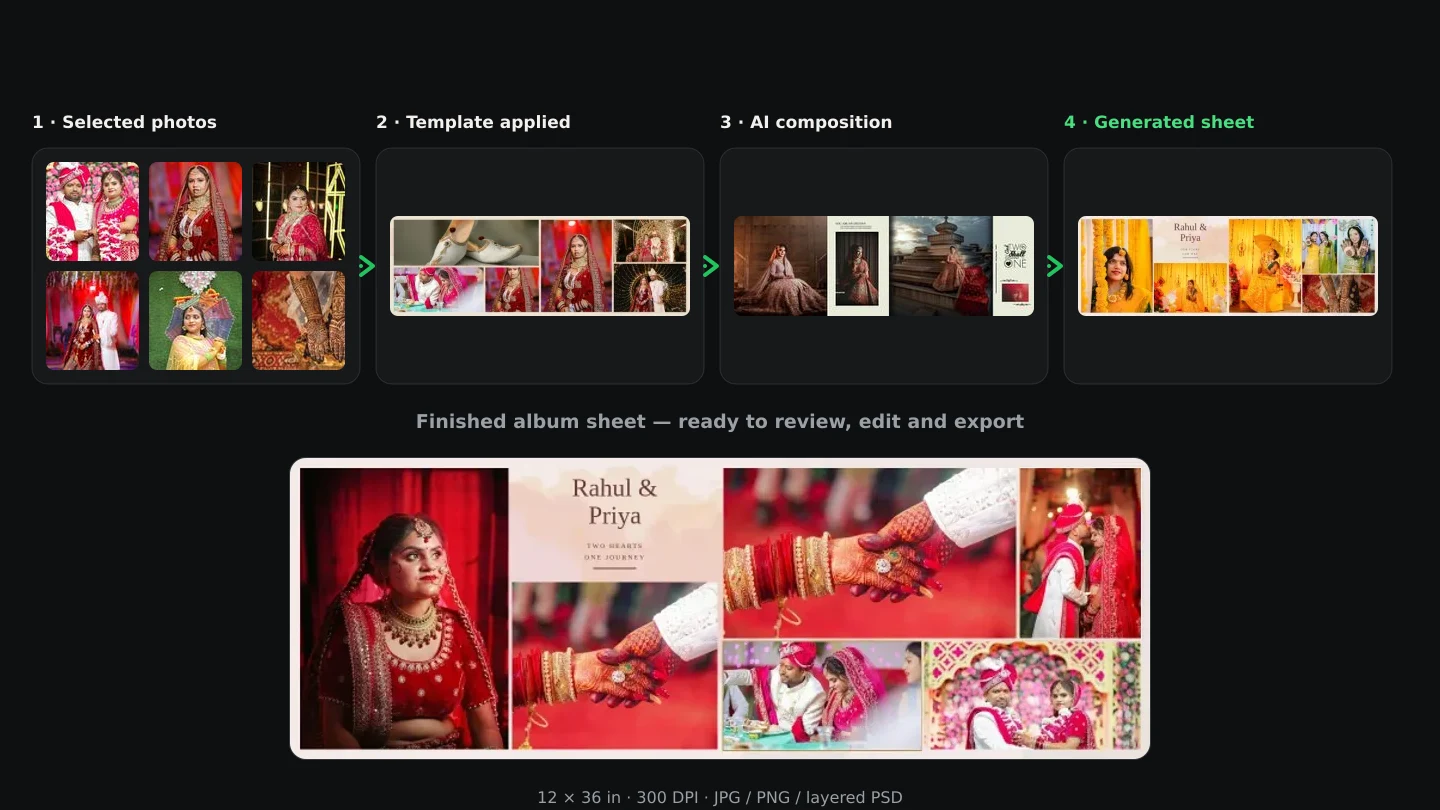
The idea in one paragraph
Studios that design albums by hand often use the same layouts repeatedly: a hero photo with a column of supports, a 7-photo storytelling spread, a dense mosaic for the reception. Wedding album automation captures that layout as a reusable template. You upload the PSD once, the photo slots are detected and confirmed by you, and afterwards every wedding's photos fill those slots in shooting order. The design is fixed; only the photos change. It is worth being clear about what that does not mean:
- Not automatic publishing. You review the mapping before any sheet is generated.
- Not a change to your photos. Crops keep each slot's ratio; faces and content stay as shot.
- Not limited to one album. A verified template is reused for as many weddings as you like.
- Not a replacement for design judgement. Sequence, selection and the final review are still yours.
The pipeline
- 1
Analyse the PSD
Layers, masks, clipping and smart objects are read in a background worker in your browser.
- 2
Detect photo slots
Likely photo areas are scored and shown with their confidence: high and medium are enabled, low are shown but off.
- 3
Map the photos
Photos fill slot 01, 02 and so on on sheet 1, then continue on the next sheets in shooting order.
- 4
Preview and generate
Check each sheet, fix anything that is wrong, then generate at full resolution.
How slots are found and filled
In Smart Photo Selection, no particular layer names or sizes are required. Each layer is scored on the evidence that it holds a photo: a shape with image layers clipped to it is the strongest signal, raster smart objects count as likely placeholders, and flat opaque shapes in a frame position are considered. Names such as photo or image add weight; background, frame or logo reduce it. The result is a suggestion you confirm — you can exclude slots, draw a missing one, and reorder or renumber.
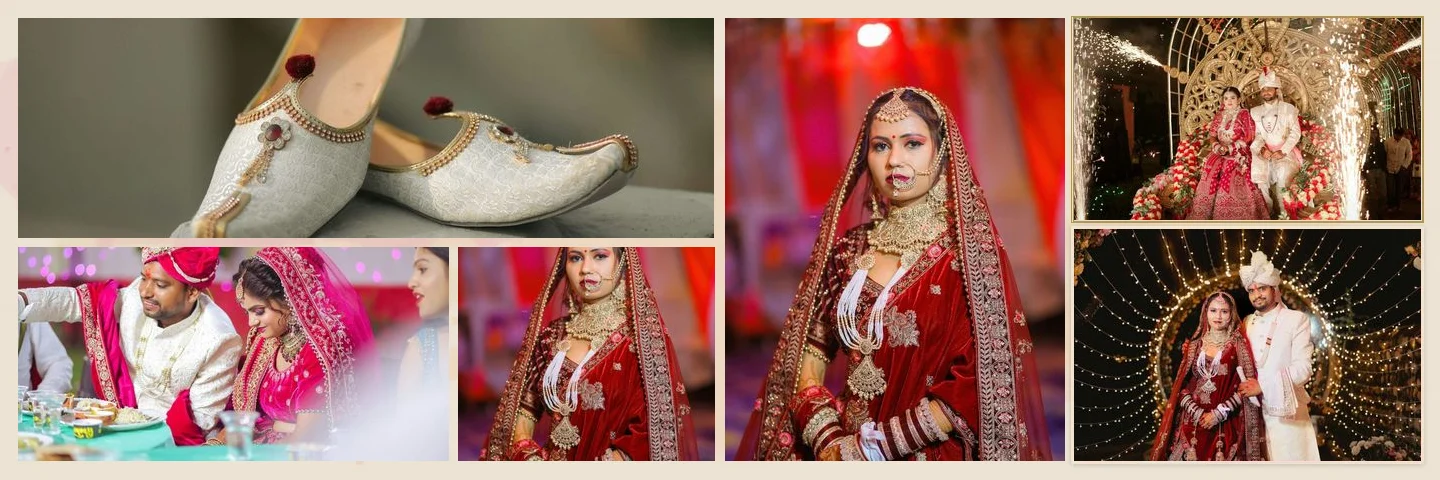
The shooting order comes from file names such as DSC_5401.jpg, ignoring dates, times, resolutions and copy or edit suffixes; photos without a number go to the end, and you can override the order of any photo before you generate. A photo is never placed twice: with more photos than slots, a repeatable design continues on new sheets, and with fewer, slots stay empty rather than being padded with repeats.
Quality checks built into the run
- Original files: generation decodes the original photos and fails rather than falling back to a thumbnail.
- Print resolution: the effective ppi of each photo in its slot is calculated, and anything below 200 ppi is flagged.
- No stretching: crops always keep the slot's ratio, with panning and zooming available inside the crop.
- Progress and retries: sheets generate one at a time with progress, and failed jobs can be retried.
- Fold safety: faces and text are kept clear of the centre fold, and export is blocked if something still crosses it.
Automation or the AI generator?
| Album automation (PSD templates) | AI Album Generator | |
|---|---|---|
| Best for | A fixed house style you already own | Variety and fast first drafts |
| Layout decided by | Your template's slots | Analysis of the photos |
| Setup | Upload the PSD and confirm slots once per template | Choose photos and a size per album |
| Per album | Map photos, review, generate | Generate, review, regenerate sheets |
| Output | Full-size JPG, PNG or layered PSD | Full-size JPG, PNG or layered PSD |
Both live in Album Studio and both read photos from the booking, so nothing is re-uploaded. If you are starting without a template of your own, the AI album generator composes sheets from the selection instead — see how AI chooses photos and album layouts. Automation is worth the setup when you design many albums in one style, when a second designer or an assistant picks up the work, or when a studio's layouts need to stay identical from book to book; for a single bespoke album each time, a free-form AI design will feel faster. Unusual PSDs may need a slot drawn by hand, and some files cannot be used at all — the PSD requirements page explains what the automation accepts.
album automationPSD templatesalbum workflowalbum design
Frequently Asked Questions
Do I need to rename my PSD layers?
No. If every slot's name contains a unique number — Photo 01, Photo 02 — that order is used; otherwise slots are ordered page by page, left page first, top to bottom.
What if a photo slot is not detected?
Draw it during verification. It is saved with the template and used for every album after that.
Can I change which photo goes into a slot?
Yes. Choose another photo for any slot and the two swap, so nothing is duplicated.
Can automation fill more than one sheet?
Yes. A repeatable design continues across as many sheets as the photos need.
Is my PSD uploaded to a server?
No. PSD analysis and album generation run in a background worker in your browser, and projects are stored on that device.
Where do I start?
Upload and verify a template with the PSD template guide, then map a booking's photos with map photos to template slots.
Articles in This Series
- From Selected Photos to a Finished AlbumTurn a couple's submitted selection into printable album sheets: create the project, choose the photos, generate, review, edit and export at full size.
- How AI Chooses Photos and Album LayoutsWhat Smart Photo Selection's AI measures — sharpness, exposure, faces, orientation and duplicates — and how those signals become a hero photo and a balanced spread.
- AI Wedding Album Design: The Complete GuideHow AI wedding album design works, what it does well, where you still decide, and a practical workflow from photo selection to print-ready export.
- JPG vs PNG vs TIFF vs PSD: Which File Format for Wedding Albums?Which file format to send your album lab: JPG, PNG, TIFF or PSD compared on quality, size, layers and colour profiles, and what Smart Photo Selection exports today.
- What Is Photo Selection Software? The Complete Photographer's GuidePhoto selection software explained: online galleries, client proofing, AI shortlists and face search — what it does, who needs it and how it differs from culling.
- Photo Selection vs Photo Culling: What's the Difference?Culling removes rejects on your computer; selection collects the client's decision online. What each step does, who it serves, and the order that works.
- Best Photo Selection Software for Wedding Photographers: How to ChooseHow wedding photographers should compare photo selection software: online proofing, AI shortlists, face search, album handoff — and the questions that reveal fit.
- How to Select the Best Wedding Photos FasterA practical method for choosing the best photos from a large wedding shoot: two passes, folders per function, AI help and a locked client choice.
- Face Scan: Find Any Person's Photos in an Event GalleryHow a face scan photo finder works: a guest scans their face in the phone browser and sees only the event photos they appear in, with no app and no account.
- The Client Photo Selection Workflow, Start to FinishHow client photo selection works online: share a gallery, let the client mark favourites, lock the set on submission and download exactly what they chose.
- The Complete Wedding Photography WorkflowOne workflow from the wedding day to delivery: folder uploads, culling, client selection, face scan for guests, gallery delivery and album sheets.
- Bleed, Safe Area and the Centre Fold in Wedding AlbumsWhat bleed, trim, safe area and the centre fold mean for wedding album spreads, how binding affects the gutter, and how to keep faces and text safe.
- How Many Photos per Wedding Album Spread?Choosing how many photos to put on each wedding album spread: density, pacing, hero images, page splits like 3 + 4, and when fewer photos tell more.
- 12 × 36 vs 14 × 40 Wedding Album: Which Size Should You Offer?12x36 vs 14x40 wedding albums compared: page size, ratio, pixels at 300 DPI, photo resolution needed and which layouts and clients each size suits best.
- Double Exposure Wedding Album Ideas That Actually WorkTen double exposure pairings for wedding album spreads, how to choose photos that blend well, where to place them in the album and when to avoid the effect.
- Indian Wedding Album Design Ideas: Haldi, Mehndi, Sangeet, Wedding and ReceptionIndian wedding album design ideas for every function: haldi, mehndi, sangeet, baraat, pheras, vidaai and reception, with layouts, palettes and pacing.
- Wedding Photo Colour Grading Styles: Choosing a Look That LastsWarm, film, clean and bright, moody cinematic or teal and orange: how each wedding colour grading style works, who it suits and how to keep albums consistent.
- Natural Skin Retouching for Wedding Photos: What to Fix and What to LeavePrinciples of natural skin retouching for wedding albums: what to remove, what to keep, preserving texture, consistency across spreads and asking clients.
- A Wedding Album Delivery Workflow for PhotographersA practical album workflow for wedding photographers: client photo selection, design, review rounds, revisions, lab checks, printing and final delivery.
- AI Photo Selection for Wedding PhotographersWhat AI photo selection does with sharpness, exposure, faces and duplicates, and how to use it on a wedding shoot without losing the moments that matter.
- How to Find Bride and Groom Photos FasterPractical ways to locate bride and groom photos across a wedding gallery of thousands: folder structure, selection marks and face-based search.
- How to Deliver Wedding Photos FasterShorten the gap between the wedding and the final handover: background uploads, an early cull, online selection, one gallery link and ZIP delivery.
- A Wedding Photo Culling Workflow That Keeps UpA repeatable culling workflow for wedding photographers: remove rejects, break ties between near-duplicates and hand a clean gallery to the couple.
- Face Scan vs Manual Photo Search: What Helps GuestsA clear comparison of face scan photo finding and manual gallery search: speed, coverage, privacy and what each approach means for photographers.
Step-by-Step Guides
- How Album Automation WorksUnderstand Album Automation: booking photos are read in sequence and mapped into the verified slots of your PSD design, sheet by sheet, for export.
- How to Upload and Use Your Own PSD Album TemplateUpload a PSD album design to Smart Photo Selection, verify the detected photo slots, set the fill order and reuse the template for every wedding, with automatic photo mapping.
- How PSD Template Slots Are AnalyzedUnderstand how Smart Photo Selection reads a layered PSD and detects its photo slots: analysis stages, confidence levels, and how to confirm or correct each slot.
- How to Map Photos to Template SlotsPlace every chosen photo into the right frame: how the mapping step fills slots in album order, swaps and replaces frames, and catches low-resolution photos.
Related Features
Design Your Next Album in Smart Photo Selection
Generate spreads from a booking's photos, refine them in the layer-based editor and export print-ready files.