Photo Delivery
The Client Photo Selection Workflow, Start to Finish
Client selection is the step where a shoot becomes a deliverable: the client decides which photos move forward, and everything after — editing, album, print, delivery — works from that list. Done online, it replaces shared drives, file-name lists and message threads with one gallery where every photo is simply selected or not selected, and where a submission locks the agreed set. This guide walks through the whole workflow, from the photographer's upload to the downloaded ZIP.
By Smart Photo Selection TeamUpdated 4 min readIn Photo Delivery
The stages at a glance
- Upload: the shoot goes into the booking, one folder per function or part of the event.
- Cull: you remove the frames that should never reach the client.
- Share: one gallery link or QR code opens the private selection view.
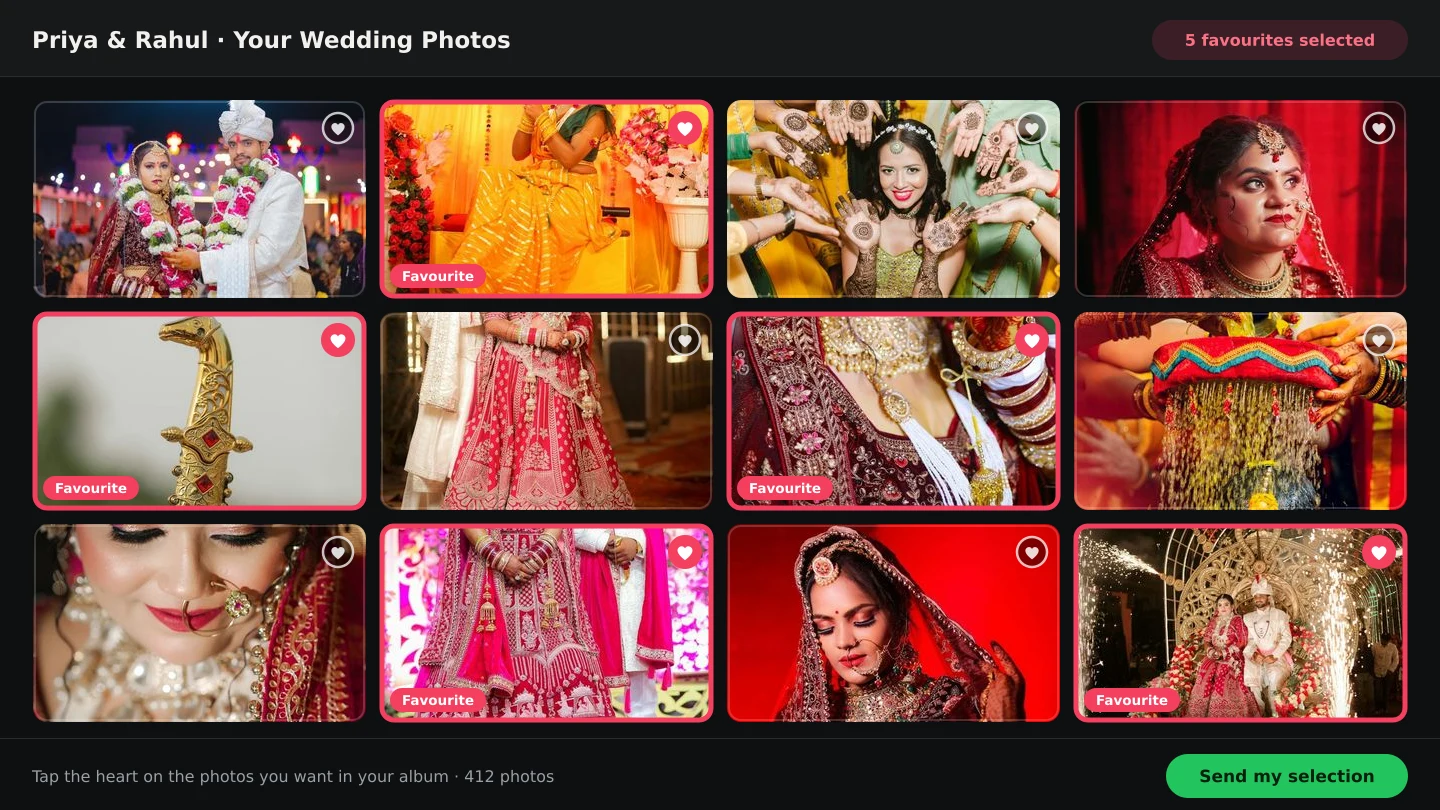
- Select: the client marks favourites folder by folder, filtering as they go.
- Submit: the selection locks, so it cannot change by accident.
- Deliver: you download exactly the approved set as a ZIP, and the album starts from it.
What the client actually does
In Smart Photo Selection the client opens the gallery link in a browser — no account, no software. Every photo shows its status as selected or not selected; the client can filter to either view, use select all or unselect all within a view, and work through the folders at their own pace. Your studio name, Instagram link and phone number sit at the top of the page, so questions come to you rather than to a platform.
- Folder by folder: haldi, ceremony, reception — the same order they remember the day in.
- Filter to check: a selected-only view shows what has been chosen so far and makes gaps obvious.
- No deadline surprises: agree the target number and the submission date in the brief, then send one reminder a week before it.
- Pause and return: selections persist, so the couple can finish in two sittings.
What the photographer controls
- What they see: cull first, so the client never scrolls past rejects or test frames.
- Client downloads: turn downloads on or off per booking, depending on the package.
- The photo period: every booking shows when photos will be deleted, and you can extend the period from the booking.
- What happens next: the submitted set is what you edit, album and deliver.
Why submission matters
Until the client submits, the selection is a draft. On submission it locks: photos can no longer be selected, uploaded or deleted by mistake. That single change removes most of the ambiguity in a delivery — you are working from an agreed list rather than the last message in a thread, and anything added afterwards is visibly a change request. From there, downloading the selection as a ZIP gives you the exact set for editing or delivery.
Common failure points
| Failure point | What it costs | Fix |
|---|---|---|
| Sharing the whole unculled shoot | Client loses confidence and stops choosing | Cull before you share |
| No target number | 600 favourites, no album that can hold them | Agree the number in the brief |
| Feedback in messages | File names quoted, photos misidentified | Submission locks a single list |
| No deadline | Delivery and album stall for weeks | Set a date and remind once |
| Photos deleted too early | Album work starts after the gallery is gone | Check the photo period; extend it |
From selection to the next step
The submitted set feeds everything that follows. Download it for editing, deliver it through the gallery as a ZIP, or start the album directly from the booking's photos in Album Studio. Clients who want a second opinion can pass the same gallery link to family; guests, meanwhile, use the face scan to find their own pictures without touching the selection. See delivering wedding photos faster for the handover side. Before the gallery goes out, run through this:
- The shoot is uploaded into folders and the counts look right.
- The cull is finished; nothing unusable is visible.
- The target number and deadline are in the message with the link.
- Client downloads are set the way the package requires.
- The photo period covers editing, album and delivery.
- The client knows that submitting locks the set.
client selectionphoto proofinggalleryworkflow
Frequently Asked Questions
Do clients need an account to select photos?
No. They open the gallery link in a browser, mark photos as selected, and submit when they are done.
What happens when the client submits?
The selection locks: photos can no longer be selected, uploaded or deleted by mistake. You then download exactly that set as a ZIP.
Can the client download their own photos?
Yes, if you turn client downloads on for the booking. You decide whether downloads are available.
How long do the photos stay available?
Each booking shows its photo period and deletion date, and you can extend the period from the booking if the client needs longer.
How is this different from a shared drive?
A drive stores files; selection records the choice on the photos themselves, so you can filter to the approved set and download it in one step.
Can guests use the same gallery?
Yes. Clients select, and guests can use the face scan to find their own photos, from one shared link.
Articles in This Series
- How to Select the Best Wedding Photos FasterA practical method for choosing the best photos from a large wedding shoot: two passes, folders per function, AI help and a locked client choice.
- How to Deliver Wedding Photos FasterShorten the gap between the wedding and the final handover: background uploads, an early cull, online selection, one gallery link and ZIP delivery.
- A Wedding Photo Culling Workflow That Keeps UpA repeatable culling workflow for wedding photographers: remove rejects, break ties between near-duplicates and hand a clean gallery to the couple.
- From Selected Photos to a Finished AlbumTurn a couple's submitted selection into printable album sheets: create the project, choose the photos, generate, review, edit and export at full size.
- What Is Photo Selection Software? The Complete Photographer's GuidePhoto selection software explained: online galleries, client proofing, AI shortlists and face search — what it does, who needs it and how it differs from culling.
- Photo Selection vs Photo Culling: What's the Difference?Culling removes rejects on your computer; selection collects the client's decision online. What each step does, who it serves, and the order that works.
- Best Photo Selection Software for Wedding Photographers: How to ChooseHow wedding photographers should compare photo selection software: online proofing, AI shortlists, face search, album handoff — and the questions that reveal fit.
- Face Scan: Find Any Person's Photos in an Event GalleryHow a face scan photo finder works: a guest scans their face in the phone browser and sees only the event photos they appear in, with no app and no account.
- What Is Wedding Album Automation?Wedding album automation explained: upload a PSD template once, confirm the photo slots, and map every wedding's photos into finished sheets automatically.
- The Complete Wedding Photography WorkflowOne workflow from the wedding day to delivery: folder uploads, culling, client selection, face scan for guests, gallery delivery and album sheets.
- How AI Chooses Photos and Album LayoutsWhat Smart Photo Selection's AI measures — sharpness, exposure, faces, orientation and duplicates — and how those signals become a hero photo and a balanced spread.
- AI Wedding Album Design: The Complete GuideHow AI wedding album design works, what it does well, where you still decide, and a practical workflow from photo selection to print-ready export.
- Bleed, Safe Area and the Centre Fold in Wedding AlbumsWhat bleed, trim, safe area and the centre fold mean for wedding album spreads, how binding affects the gutter, and how to keep faces and text safe.
- How Many Photos per Wedding Album Spread?Choosing how many photos to put on each wedding album spread: density, pacing, hero images, page splits like 3 + 4, and when fewer photos tell more.
- 12 × 36 vs 14 × 40 Wedding Album: Which Size Should You Offer?12x36 vs 14x40 wedding albums compared: page size, ratio, pixels at 300 DPI, photo resolution needed and which layouts and clients each size suits best.
- Double Exposure Wedding Album Ideas That Actually WorkTen double exposure pairings for wedding album spreads, how to choose photos that blend well, where to place them in the album and when to avoid the effect.
- Indian Wedding Album Design Ideas: Haldi, Mehndi, Sangeet, Wedding and ReceptionIndian wedding album design ideas for every function: haldi, mehndi, sangeet, baraat, pheras, vidaai and reception, with layouts, palettes and pacing.
- Wedding Photo Colour Grading Styles: Choosing a Look That LastsWarm, film, clean and bright, moody cinematic or teal and orange: how each wedding colour grading style works, who it suits and how to keep albums consistent.
- Natural Skin Retouching for Wedding Photos: What to Fix and What to LeavePrinciples of natural skin retouching for wedding albums: what to remove, what to keep, preserving texture, consistency across spreads and asking clients.
- JPG vs PNG vs TIFF vs PSD: Which File Format for Wedding Albums?Which file format to send your album lab: JPG, PNG, TIFF or PSD compared on quality, size, layers and colour profiles, and what Smart Photo Selection exports today.
- A Wedding Album Delivery Workflow for PhotographersA practical album workflow for wedding photographers: client photo selection, design, review rounds, revisions, lab checks, printing and final delivery.
- AI Photo Selection for Wedding PhotographersWhat AI photo selection does with sharpness, exposure, faces and duplicates, and how to use it on a wedding shoot without losing the moments that matter.
- How to Find Bride and Groom Photos FasterPractical ways to locate bride and groom photos across a wedding gallery of thousands: folder structure, selection marks and face-based search.
- Face Scan vs Manual Photo Search: What Helps GuestsA clear comparison of face scan photo finding and manual gallery search: speed, coverage, privacy and what each approach means for photographers.
Step-by-Step Guides
- How to Send Photos to Clients for SelectionHand a gallery to the couple for photo selection: share the link or QR, let them mark frames with Done, then submit so the agreed set is locked for delivery.
- How to Manage and Deliver Photo GalleriesRun a booking's gallery end to end: downloads, private mode, sharing by link or QR, ZIP delivery of the selected set and the photo period that governs expiry.
- How to Select Photos Manually in Smart Photo SelectionChoose photos by hand in the Smart Photo Selection gallery: folder tabs, the Selected and Not Selected filters, full-size preview, Select All and saving the selection.
- How to Cull Photos Before SelectionCull the raw shoot in Smart Photo Selection: review folders at full size, remove blinks, blurs and test frames, and keep the client's view clean before selection.
Related Features
Design Your Next Album in Smart Photo Selection
Generate spreads from a booking's photos, refine them in the layer-based editor and export print-ready files.