Smart Photo Selection guide
How Album Automation Works
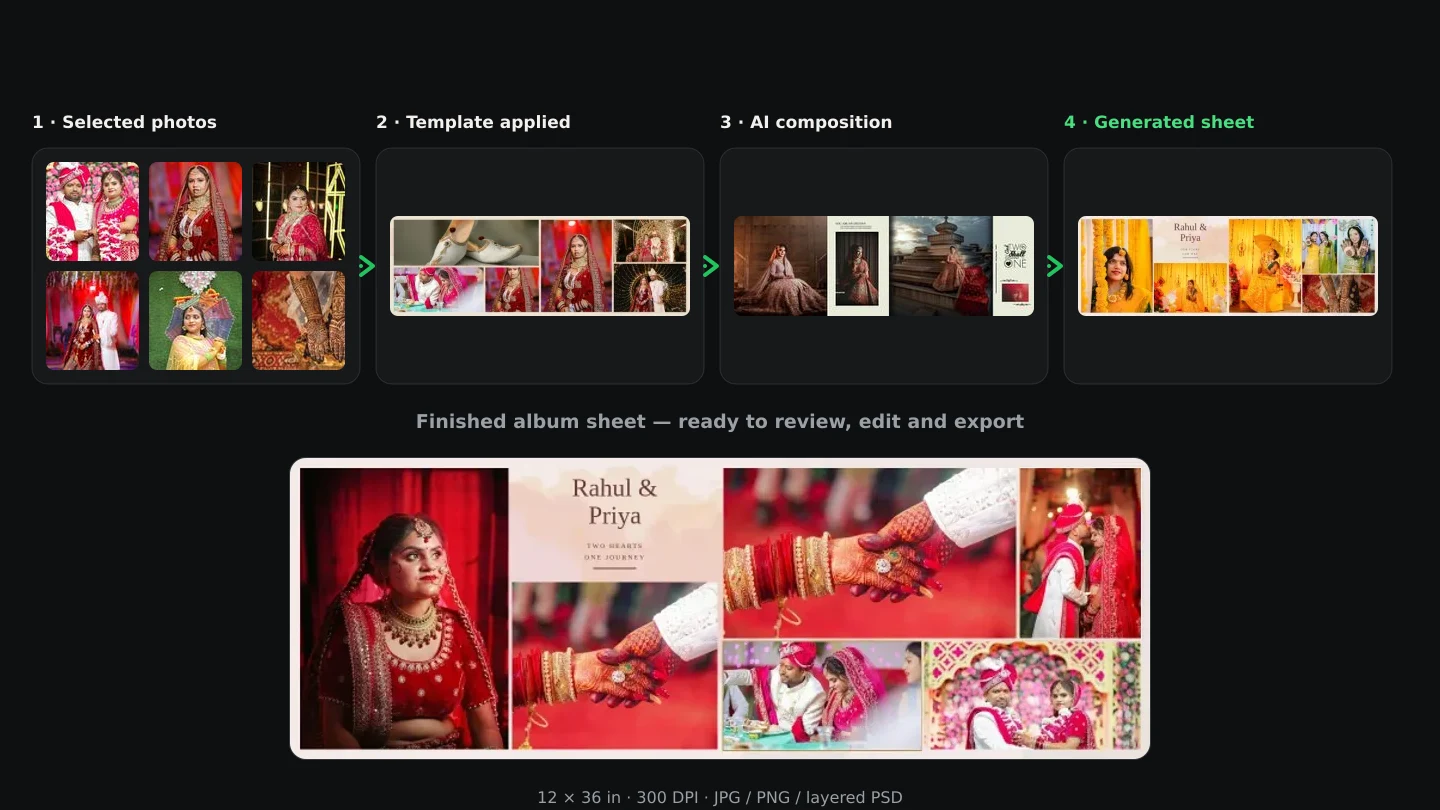
Understand Album Automation: booking photos are read in sequence and mapped into the verified slots of your PSD design, sheet by sheet, for export.
By Smart Photo Selection TeamUpdated Published 4 min read
Short answer
Create an album with the Automatic album card. The five steps — Photos, Template, Mapping, Preview, Generate — take the booking's folders, read the photos in shooting order, fill your template's slots (01, 02, … on sheet 1, then the next sheet) and render each sheet at full resolution. Nothing is generated until you have seen the mapping, and every sheet stays editable in the album editor.
What You Need
- A verified template — a system template or your own PSD with confirmed photo slots.
- The booking's photos uploaded with folders, and their order known (file names like
DSC_5401.jpgread as sequence). - A project created with the
Automatic albumcard in Album Studio.
The idea in one paragraph
Album Automation works backwards from a design you already trust. You supply the photos and the template; Smart Photo Selection reads the photos in shooting order and places them into the template's verified slots, sheet by sheet, then renders each sheet from the original files at the album's full pixel size. The design itself is never reinterpreted — only the photo slots change — so a studio house style, a designer's PSD or a licensed layout survives every wedding it is used on.
The five steps in Album Studio
- 1
Photos
1. Booking galleryshows the album's photo picker: folder tabs, theClient selection:filter,Select shown/Select all in folder/Select entire galleryand theN chosen for the albumcounter. TheSequence & album orderpanel appears beside it so you can fix the order before anything is placed. - 2
Template
2. Album templatelists your verified PSDs with their size and slot count, plus the Smart Photo Selection template library below. ChoosePhoto fit—Fill slot (crop)orWhole photo (no crop)— and read the plan: N photos, N slots per sheet, N sheets. - 3
Mapping
3. Photo → slot mappingplaces every photo: the sheet buttons show filled/total (for exampleSheet 1 6/8), slots are numbered01,02…, andRe-map in orderrebuilds the whole album from the current order. - 4
Preview
Each sheet is rendered with your photos in place — Preview of the actual PSD design with your photos. Only the photo slots change; everything else is the template as designed.
Editopens a sheet in the editor, and the sheet's own export button saves that one sheet. - 5
Generate
5. Generate albumruns the export: choose formats, clickGenerate N sheets, and watch the job appear underGenerated fileswith a status badge, per-file sizes and aDownload allbutton.
How photos find their slots
- Photos fill slot 01, 02, … on sheet 1 in album order, then continue on the next sheet — the order comes from
Sequence & album order, which reads file names such asDSC_5401.jpg. - No photo is placed twice. Extra photos spill onto further sheets; if you choose to truncate instead, the plan says how many photos will not be placed.
- Crops always keep the slot's ratio:
Fill slot (crop)centres on the subject,Whole photo (no crop)letterboxes rather than stretching. - If the template, order or selection changes afterwards, the mapping step shows Photo selection, order or template changed and offers
Rebuild mapping. - Low-resolution frames are flagged in the mapping table — Low resolution for this slot (N ppi) — and as N photo(s) below 200 ppi in the album.
Tips
- Fix
Sequence & album orderbefore mapping — it is far cheaper than swapping slots afterwards. - Verify the template's slots once (see analyze PSD template slots); every album after that opens instantly.
- Preview every sheet before
Generate: the render is the print, and spot fixes are faster now. - Keep
Fill slot (crop)for busy templates andWhole photo (no crop)when the frame ratio already matches.
Common Mistakes
Generating straight away
Walk the mapping first. A swapped pair or an empty slot costs a minute now and a reprint later.
Changing the selection mid-album
It marks the mapping stale on purpose. Rebuild it with
Rebuild mappingrather than editing rows that no longer reflect the order.Using an unverified template
Slots must be confirmed before automation can trust them — otherwise the step links you to Review slots instead of filling anything.
Ignoring the ppi warnings
A small source photo in a large slot prints soft. Replace it in the mapping row's gallery picker before generating.
Frequently Asked Questions
Do I need my own PSD templates?
No. Smart Photo Selection ships a library you can pick in the Template step; your own PSDs add the house style when you have one.
Can I change a photo in one slot?
Yes — pick another from the row's gallery button, drag one slot onto another to swap, or open the sheet in the editor for finer control.
What if I have fewer photos than slots?
Empty slots keep the template's placeholder artwork; photos are never duplicated. The plan states how many slots stay empty.
Where does generation actually run?
In a background job on your device: sheets render one at a time with progress, Cancel stops it, and Retry restarts a failed job with the same formats.
Related Guides
- How to Create an Album ProjectStart an album in Smart Photo Selection's Album Studio: name it, choose the AI, automatic or manual route, set the size, and manage projects from Recent albums.
- How to Map Photos to Template SlotsPlace every chosen photo into the right frame: how the mapping step fills slots in album order, swaps and replaces frames, and catches low-resolution photos.
- How to Generate Album SheetsRender the album into print files: pick JPG, PNG, Layered PSD, TIFF, PDF or WebP, pass the preflight checks, watch the job run, and download the sheets.
- How PSD Template Slots Are AnalyzedUnderstand how Smart Photo Selection reads a layered PSD and detects its photo slots: analysis stages, confidence levels, and how to confirm or correct each slot.
Related Features
Further Reading
- What Is Wedding Album Automation?Wedding album automation explained: upload a PSD template once, confirm the photo slots, and map every wedding's photos into finished sheets automatically.
- From Selected Photos to a Finished AlbumTurn a couple's submitted selection into printable album sheets: create the project, choose the photos, generate, review, edit and export at full size.
- How AI Chooses Photos and Album LayoutsWhat Smart Photo Selection's AI measures — sharpness, exposure, faces, orientation and duplicates — and how those signals become a hero photo and a balanced spread.
Try It in Smart Photo Selection
Open Album Studio with a photographer account, pick a booking and follow the steps above on your own photos.