Smart Photo Selection guide
How to Generate Album Sheets
Render the album into print files: pick JPG, PNG, Layered PSD, TIFF, PDF or WebP, pass the preflight checks, watch the job run, and download the sheets.
By Smart Photo Selection TeamUpdated Published 4 min read
Short answer
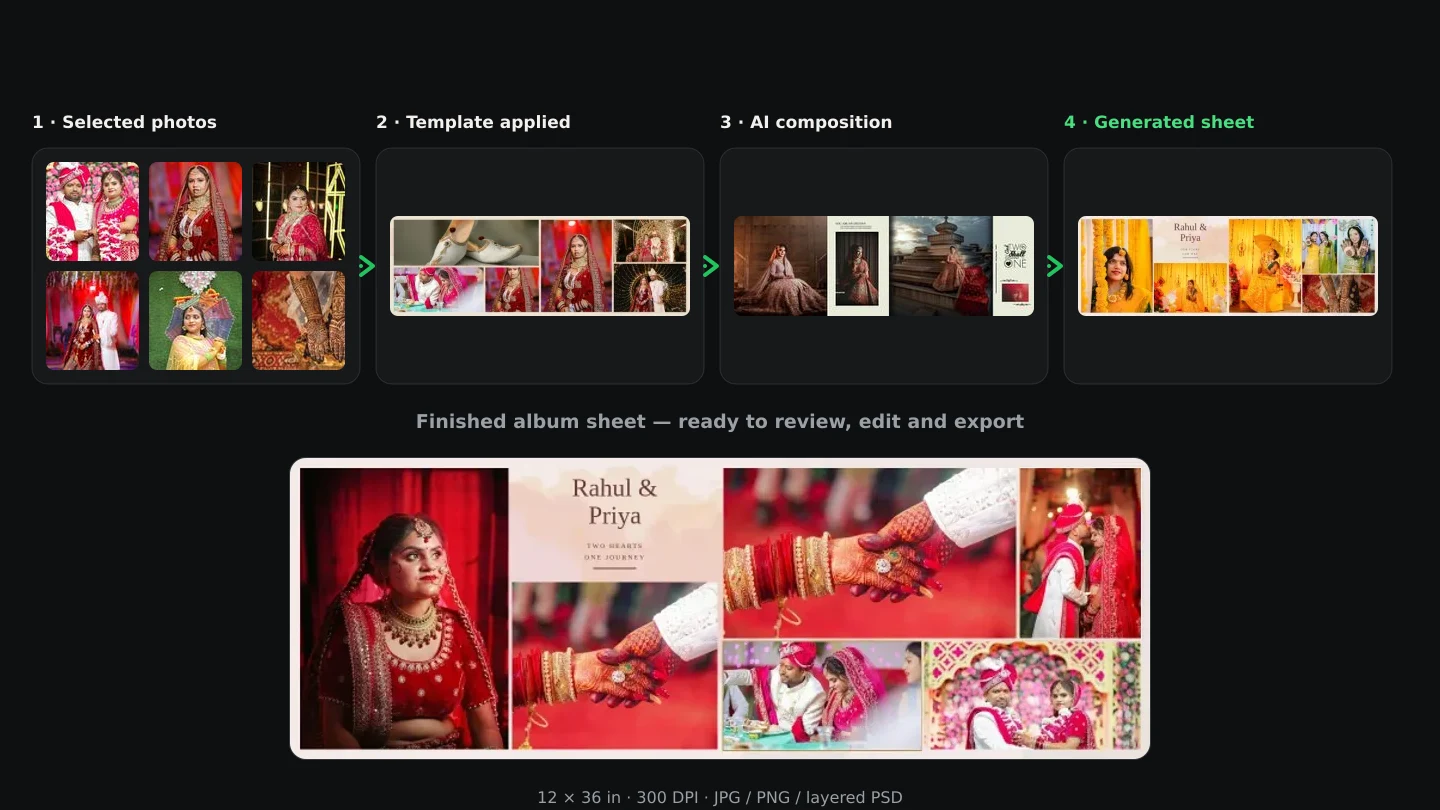
On the Generate step choose your formats (JPG with Quality 95 (recommended), plus PNG, Layered PSD, TIFF, PDF or WebP) and click Generate N sheets. The job walks Preparing photos → Sheet 1 of N → N files ready with a progress bar you can Cancel. Results land under Generated files with sizes, DPI and a verified badge for PSDs; Download all collects them. Warnings open Check before generating, where you can Go back and fix or Generate anyway.
What You Need
- Sheets with a completed mapping — no duplicates, and every photo still in the project.
- The formats your lab asks for (JPG or TIFF for most labs, Layered PSD for hand-off).
- Enough free space for full-resolution files: sheets render at the template's full pixel size.
Before you press generate
Generation is a local render job: each sheet is composited from the original photo files at the template's full resolution with DPI set for print, then written in every format you ticked. It runs sheet by sheet so memory stays bounded, and it remembers what it produced — an interrupted page marks unfinished jobs Failed, which is what Retry is for.
Step by step
- 1
Choose the formats
Tick what you need.
JPG— Flattened, full template resolution with DPI set for print. Rendered from the original photo files. — with the quality select:Quality 92,Quality 95 (recommended)orQuality 100 (largest).PNGkeeps transparency where a sheet has no background.Layered PSDkeeps the template's own layers, masks and text with each photo on its own clipped layer, and each file is re-opened after writing to verify it.TIFFis Deflate-compressed with DPI and the RGB profile embedded;PDFputs one page per sheet at album size;WebPis for web sharing only — No DPI metadata — not for print. - 2
Clear the blockers
Preflight runs automatically. Blockers stop you outright: There are no sheets to generate., Choose at least one format., A sheet uses a template that no longer exists on this device., "Layer 4" on Sheet 2 refers to a photo that is no longer in the project., and A photo is placed in more than one slot. Fix the mapping first.
- 3
Read the warnings
Warnings don't stop you but should be read: N slot(s) are empty — they will show the template's placeholder artwork. and N photo(s) will print below 200 ppi (layer: ppi, …). If any exist,
Check before generatinglists them withGo back and fixandGenerate anyway. - 4
Generate
Click
Generate N sheets(orGenerate 1 sheet). The button becomes the running job: Queued, Preparing photos, then Sheet 3 of 20: compositing, with a progress bar and aCancelbutton. - 5
Collect the files
On success a toast reports Album generated: N file(s) and the job appears under
Generated fileswith a status badge, per-output details (Album size · W×H px · DPI · size),verifiedornot verifiedon PSDs, and buttons forDownload all, per-file download,Retry(on failures) andRemove.
Which format for which job
| Format | Use it for | Remember |
|---|---|---|
| JPG | Everyday lab delivery and client previews | Quality 95 is the sane default; 100 is huge |
| PNG | Sheets with transparency / web use | Lossless but heavy at 300 DPI |
| Layered PSD | Handing off to a retoucher or designer | Text added in Album Editor is rasterized |
| TIFF | Print labs that demand TIFF | Deflate-compressed, profile embedded |
| Reviewing or sharing the whole book | One page per sheet at the exact album size | |
| WebP | Web galleries and WhatsApp previews | No DPI metadata — never send it to print |
Tips
- Tick Layered PSD alongside JPG on the first run: you only avoid it if you never need to reopen the book.
- Fix warnings rather than clicking
Generate anyway— empty slots and low-ppi photos are exactly what a proof catches. - Generate in smaller batches with the sheets selector when a 60-sheet album chokes your machine.
- Keep the tab open until N files ready appears; closing mid-job leaves the remainder marked
FailedforRetry.
Common Mistakes
Sending WebP to the lab
WebP carries no DPI. Use JPG or TIFF for print, WebP only for screens.
Ignoring `not verified` on a PSD
The re-open check failed for that file.
Retryjust that job before shipping it to a designer.Regenerating after a small edit without re-checking
Edits invalidate the previous outputs. Run the preflight again — a duplicate or missing photo shows up as a blocker, not a surprise at the lab.
Cancelling mid-run and assuming the files are there
Only completed outputs are listed. The unfinished sheets need another run.
Frequently Asked Questions
Where are the files saved?
In the browser's storage with the project, listed under Generated files. Download all writes them to disk as a ZIP.
Can I generate one sheet only?
Yes — the sheets selector scopes the job; the button label follows the selected count.
Do exports use the JPG quality for other formats?
PDF and WebP reuse the JPG quality setting; PNG, TIFF and PSD are lossless regardless of it.
What if a job fails halfway?
The job stays listed as Failed with a Retry button, and the reason (for example a template PSD missing from this device) shows in the error line.
Related Guides
- How to Map Photos to Template SlotsPlace every chosen photo into the right frame: how the mapping step fills slots in album order, swaps and replaces frames, and catches low-resolution photos.
- How Album Automation WorksUnderstand Album Automation: booking photos are read in sequence and mapped into the verified slots of your PSD design, sheet by sheet, for export.
- How to Edit an Album Sheet in the EditorHand-finish a sheet in Smart Photo Selection's Album Editor: place and swap photos in slots, crop, reorder layers, adjust tone, and save or export the sheet.
- How to Export a Wedding Album as JPG, PNG or Layered PSDExport one album sheet or the whole album from Smart Photo Selection as full-resolution JPG, PNG or a verified layered PSD, and download everything as a ZIP for your lab.
Related Features
Further Reading
- What Is Wedding Album Automation?Wedding album automation explained: upload a PSD template once, confirm the photo slots, and map every wedding's photos into finished sheets automatically.
- From Selected Photos to a Finished AlbumTurn a couple's submitted selection into printable album sheets: create the project, choose the photos, generate, review, edit and export at full size.
- AI Wedding Album Design: The Complete GuideHow AI wedding album design works, what it does well, where you still decide, and a practical workflow from photo selection to print-ready export.
Try It in Smart Photo Selection
Open Album Studio with a photographer account, pick a booking and follow the steps above on your own photos.