Smart Photo Selection guide
How to Use AI Photo Selection
Run AI Photo Selection in Smart Photo Selection: set how many photos the album needs, rank the shoot by sharpness, exposure and faces, then adjust the shortlist by hand.
By Smart Photo Selection TeamUpdated Published 5 min read
Short answer
In Album Studio click Create album, choose the Create with AI card and pick the booking. In the Photos for the AI album step select the frames to consider, then in AI selection set Photos in the album and click Run AI selection. Smart Photo Selection scores every photo for sharpness, exposure and faces, groups near-duplicates and returns AI selected photos (N) — album order; adjust it with Earlier, Later, Replace, Remove and the Not chosen list before you continue to Design.
What You Need
- A photographer (studio) account — Album Studio opens only for studio accounts.
- A booking with the shoot uploaded to its gallery, folder by folder.
- The photos you want considered already chosen (or pick them in the first step with
Select entire gallery). - A desktop or laptop browser: the analysis runs on your device, in the browser.
What the AI actually does
AI Photo Selection is a ranking pass, not an edit. Each chosen photo is decoded on your device and scored from 0 to 100 for sharpness, exposure and faces, with reasons you can read next to it — sharp, blurry / out of focus, too dark, blown highlights, 2 faces and similar. Near-duplicate bursts are grouped so a run of almost identical frames competes as one. The result is a shortlist in album order that you can reorder, extend or cut. No stock or generated images are involved, and nothing in your photographs is changed.
Step by step: run the selection
- 1
Start an AI album
Open Album Studio, click
Create album, give the album anAlbum name(for example Wedding — Rahul & Priya), choose theCreate with AIcard and clickContinue with AI. - 2
Choose the photos to consider
In
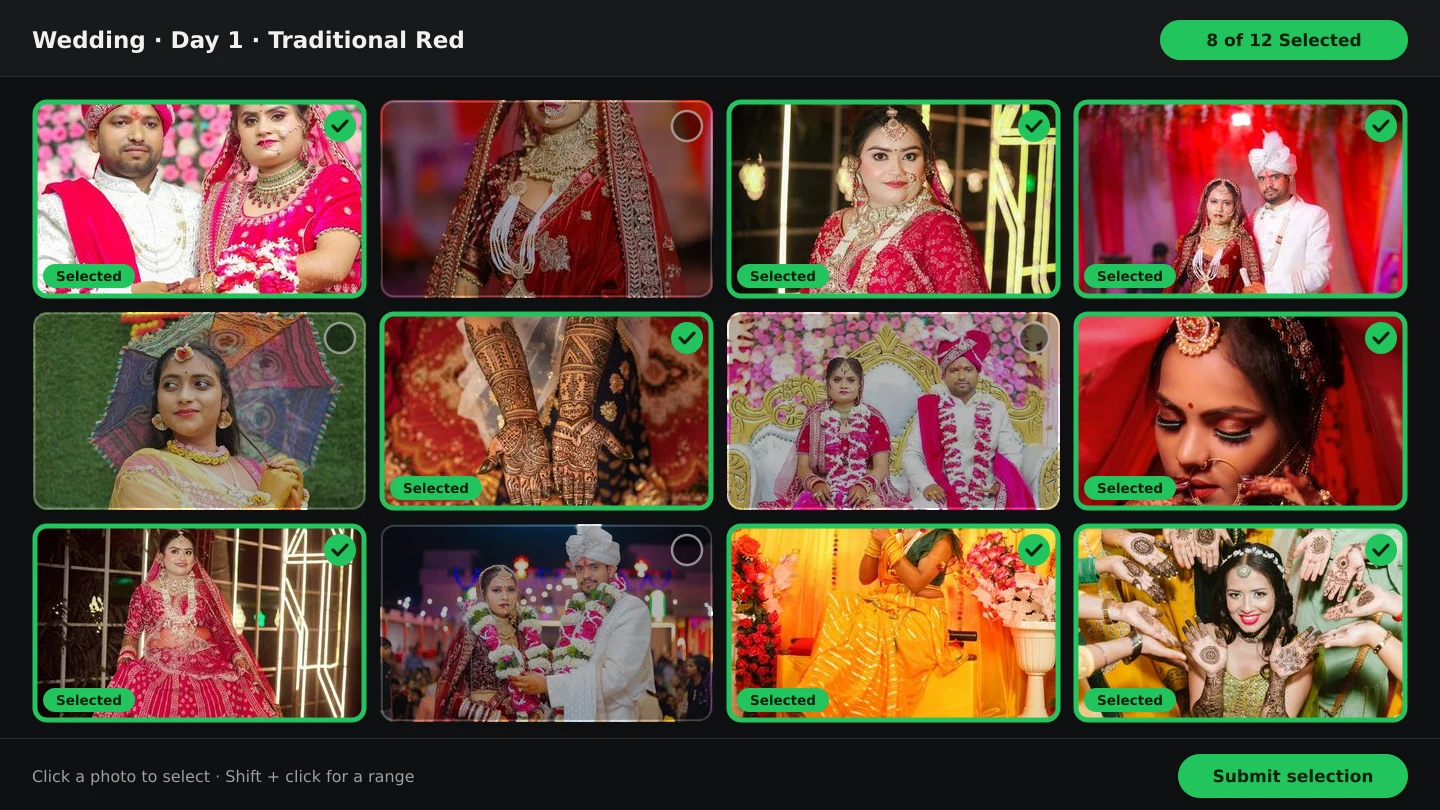
Photos for the AI album, open the booking under Choose the booking whose gallery this album uses. Use the folder tabs,Select shown,Select all in folderorSelect entire gallery, filter withClient selection:→All,SelectedorNot Selected, and watch theN chosen for the albumcounter. Photos from your computer can be added underFrom computer. Then clickNext. - 3
Set the target and run it
In
AI selection, enterPhotos in the album(the default is 40) — the number of frames you want to keep. The line beside it reads N photos available · M analysed. ClickRun AI selection; progress shows Analysing X / Y, andStopaborts it. - 4
Read the result
The shortlist appears as
AI selected photos (N) — album order, each row with its score chip, the reasons and the file's sequence number. OpenNot chosen (N)to see what was left out and why;Addbrings a frame back. - 5
Adjust by hand
Use the arrow buttons (
Earlier,Later) to reorder,Replaceto swap a frame for another, andRemoveto drop it.Add More Photosbrings in frames that were never considered. ChangePhotos in the albumat any time — the list re-selects to the new size. - 6
Continue to the design
Click
Nextto reachDesign, where you chooseAutomatic designorUse a template, then generate. If you would rather skip the AI entirely, the first step offers use all selected photos to carry your own choice straight through.
How to judge the shortlist
- Check the
Not chosenlist first: the frames the couple will ask for are usually quiet moments the score did not reward. - Trust the reasons, not only the number.
similar to …means a burst twin;softer than the restmeans a borderline frame worth a full-size look. - Keep one strong frame per moment in the
AI selected photosorder — the order becomes the album's story order. - If a whole folder is missing, use
Add More Photosrather than raisingPhotos in the albumpast what the sheets can hold.
The shortlist feeds the next step directly. If the selection still feels too large for the book, treat it as a second cull: choose photos for an album explains how many frames a spread can hold before a sheet feels crowded.
Tips
- Cull before you run it. Removing obvious rejects in the gallery first gives the ranking better material and a shorter analysis.
- Set
Photos in the albumto sheets times photos per sheet — a 20-sheet album at about seven per sheet wants roughly 140 photos. - Sort the picker by
SequencebeforeSelect entire gallery, so the shortlist starts from shooting order rather than upload order. - Re-run after adding photos:
Re-run AI selectionrescored everything, and only your manual edits to the final order are lost.
Common Mistakes
Treating the score as the final word
The score measures technical quality, not meaning. Open
Not chosenand add back the moments the couple asked for by name.Feeding it near-identical bursts
Duplicates are grouped rather than removed, so obvious burst frames still take slots. Delete them during culling first.
Analysing the entire raw shoot
Only photos you selected are analysed — pick the folders that belong to this album instead of
Select entire galleryon a 5,000-frame day.Changing the album size after selecting
Layouts are composed for their size, so a size change means generating again. Decide the size before you leave the flow.
Frequently Asked Questions
Does AI Photo Selection edit my photos?
No. It selects, scores and orders. Colour or retouching changes only happen when you add them in the album editor or the photo editor.
Can I skip the AI and choose everything myself?
Yes — in the AI selection step click use all selected photos, or use manual selection in the gallery before you start the album.
Why did a good photo get a low score?
Deliberate motion, dark reception scenes and backlit portraits often score low. Reasons such as too dark or softer than the rest explain the number; override it with Add or Replace.
Where does the shortlist go next?
Into the Design step: Automatic design lays sheets out from it, or Use a template fills a chosen template's slots with it.
Related Guides
- How to Select Photos Manually in Smart Photo SelectionChoose photos by hand in the Smart Photo Selection gallery: folder tabs, the Selected and Not Selected filters, full-size preview, Select All and saving the selection.
- How to Cull Photos Before SelectionCull the raw shoot in Smart Photo Selection: review folders at full size, remove blinks, blurs and test frames, and keep the client's view clean before selection.
- How to Choose Photos for an AlbumPick the photos that go into the book: use client picks and folder filters in Album Studio's photo picker, and decide how many frames a sheet can hold.
- How to Create a Wedding Album With AIStep-by-step: pick a booking, run the AI photo selection, choose a size and design style, generate the spreads, then review and export your wedding album.
Related Features
Further Reading
- AI Photo Selection for Wedding PhotographersWhat AI photo selection does with sharpness, exposure, faces and duplicates, and how to use it on a wedding shoot without losing the moments that matter.
- How AI Chooses Photos and Album LayoutsWhat Smart Photo Selection's AI measures — sharpness, exposure, faces, orientation and duplicates — and how those signals become a hero photo and a balanced spread.
- How to Select the Best Wedding Photos FasterA practical method for choosing the best photos from a large wedding shoot: two passes, folders per function, AI help and a locked client choice.
Try It in Smart Photo Selection
Open Album Studio with a photographer account, pick a booking and follow the steps above on your own photos.