Smart Photo Selection guide
How to Arrange 7 Photos on a Wedding Album Spread
Three ways to split seven photos across a spread (3 + 4, 4 + 3 and 5 + 2), when to use each, and how to pick or generate a 7-photo layout in Smart Photo Selection.
By Smart Photo Selection TeamUpdated 4 min read
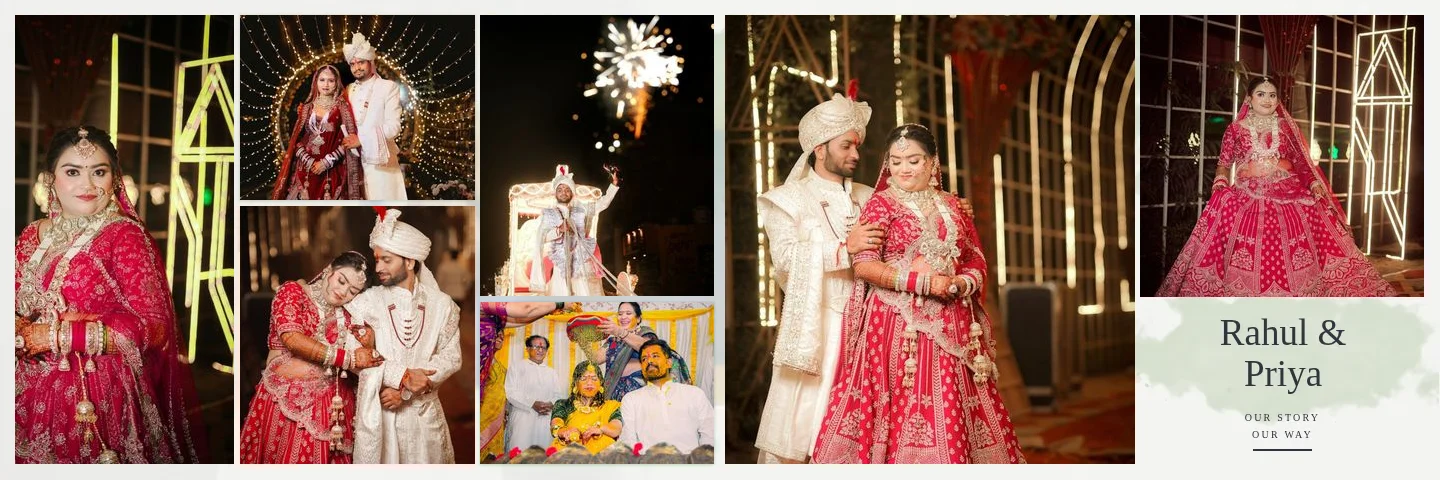
Short answer
Split the seven photos between the two pages, never across the fold: 3 + 4 or 4 + 3 for a balanced spread with a hero on one page, or 5 + 2 when one page tells a sequence and the other holds a single strong moment. In Smart Photo Selection, filter the template library by 7 photos (45 templates), or generate with Exactly 7 — all on one sheet.
What You Need
- Seven photos that belong together: one moment or one part of the day.
- One clear hero among them (the strongest frame, usually with faces).
- An album created as a double-page spread.
Why seven is a useful number
Seven photos is enough to tell a small story (an arrival, a ritual, a dance) without shrinking every frame. Because seven is odd, the pages cannot be identical, and that asymmetry is helpful: one page naturally becomes the hero page. In the Smart Photo Selection template library, seven-photo templates are the most common size together with eight: 45 of the 400+ templates are designed for seven photos.
| Split (left + right) | Templates | Best for |
|---|---|---|
| 3 + 4 | 20 | A hero portrait with two supports on the left; a sequence of four on the right. |
| 4 + 3 | 20 | The mirror image: a sequence first, then the hero page. Useful when the next spread opens on the left. |
| 5 + 2 | 5 | A busy page of five small moments facing two large photos, such as rituals facing the couple's reaction. |
Choosing the split
3 + 4 and 4 + 3: the balanced spread
Put the hero on the three-photo page so it can take most of that page's width, with two supporting frames beside it. The four-photo page then carries the sequence. Decide the direction by reading order: the eye usually starts on the left, so 3 + 4 opens with the hero and 4 + 3 ends on it.
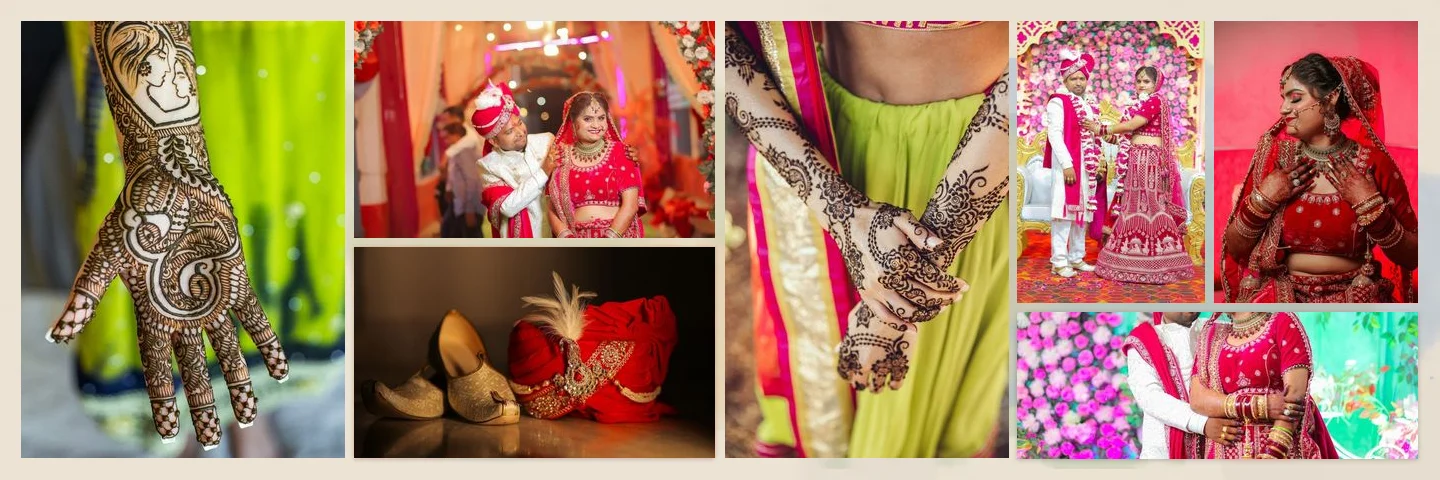
5 + 2: sequence against moment
The five-photo page works like a contact strip of small moments (haldi being applied, friends laughing, details), and the two-photo page answers it with one large image and a smaller one, or with a photo and the couple's names. Only five templates use this split (Dark Cinematic 04, Light Elegant 04, Storytelling 04, Creative 04 and Premium Mixed 04), so it stands out when used once or twice in an album.
Step by step: make a 7-photo spread
- 1
Find 7-photo templates
Open
Templatesand set thePhotos:filter to7 Photos. Narrow by style with the category chips, and compare the splits on the template previews. - 2
Or generate a 7-photo sheet
In the AI flow's design step, choose
Designed spreads, and in photos per sheet chooseExactly 7 — all on one sheet. The generator picks the split from the photos' orientations. - 3
Order the photos
Put the hero first in the selection, then the others in story order. In the AI selection step, use
EarlierandLaterto move photos. - 4
Open the sheet and check the hierarchy
Click
Edit. The hero should be clearly the largest frame. If a weaker photo landed in the hero frame, select the frame and useChange Phototo swap in the right one. - 5
Adjust crops
Use
Adjust Cropon each frame so faces sit comfortably, and keep faces away from the inner edges near the fold. - 6
Save Sheet
Click
Save Sheetwhen the spread reads well from left to right.
Matching photos to frames
- Orientation first. Each template slot prefers portrait or landscape; photos are matched to the closest one and crops always keep the frame's ratio.
- One face size per page. Mixing a tight close-up with a distant group on the same small row makes both look wrong; keep similar scales side by side.
- Rest the eye. In a 5 + 2 spread, keep the two-photo page calm; it is the answer to the busy page.
- Vary from spread to spread. Follow a 7-photo spread with a sparser one; see how many photos per spread.
Tips
- If you have eight good photos, drop the weakest rather than squeezing in an eighth frame; seven is easier to balance.
- Use 4 + 3 when the previous spread ended on its right page with a hero, to avoid two heroes facing each other across a page turn.
- The light and storytelling 7-photo templates suit daytime sets; the dark 7-photo templates suit sangeet and reception photos.
Common Mistakes
Making all seven frames the same size
Equal frames read as a contact sheet. Give one photo clearly more area.
Putting the hero next to the fold
Place the hero toward the outer part of its page; see keeping faces off the centre fold.
Mixing events on one 7-photo spread
Seven photos tell one moment well. Split two events onto separate spreads.
Frequently Asked Questions
How many 7-photo templates are there?
45 of the 400+ library templates are designed for seven photos: 20 split 3 + 4, 20 split 4 + 3 and 5 split 5 + 2.
Can a 6-photo template hold seven photos?
Templates adapt to other counts when the AI fills them, but a template designed for seven gives the best balance.
Can I change a 3 + 4 spread to 4 + 3?
Yes. Choose a template with the other split, or flip the layer positions in the editor and re-check crops.
Related Guides
- How to Keep Faces Off the Centre Fold of an AlbumWhy faces disappear into the binding, how Smart Photo Selection keeps photos and text off the centre fold, and how to check and fix spreads before you export them.
- How to Edit an AI-Generated Album DesignRefine AI-generated wedding album spreads: regenerate a sheet, change photos and crops, resize frames, edit text and exposure layers, and keep it all off the fold.
- How to Create a Wedding Album With AIStep-by-step: pick a booking, run the AI photo selection, choose a size and design style, generate the spreads, then review and export your wedding album.
- How to Design a 12 × 36 Wedding AlbumSet up a 12x36 wedding album at the right DPI, pick templates that suit the 3:1 spread, keep faces off the fold and export 10,800 × 3,600 px sheets.
Related Features
Further Reading
- How Many Photos per Wedding Album Spread?Choosing how many photos to put on each wedding album spread: density, pacing, hero images, page splits like 3 + 4, and when fewer photos tell more.
- Indian Wedding Album Design Ideas: Haldi, Mehndi, Sangeet, Wedding and ReceptionIndian wedding album design ideas for every function: haldi, mehndi, sangeet, baraat, pheras, vidaai and reception, with layouts, palettes and pacing.
- AI Wedding Album Design: The Complete GuideHow AI wedding album design works, what it does well, where you still decide, and a practical workflow from photo selection to print-ready export.
Try It in Smart Photo Selection
Open Album Studio with a photographer account, pick a booking and follow the steps above on your own photos.