Smart Photo Selection guide
PSD Showcase Previews
Generate JPEG previews from your PSD files to showcase design work in your portfolio while keeping the source files private. Premium Studio feature.
By Smart Photo Selection TeamUpdated Published 1 min read
Short answer
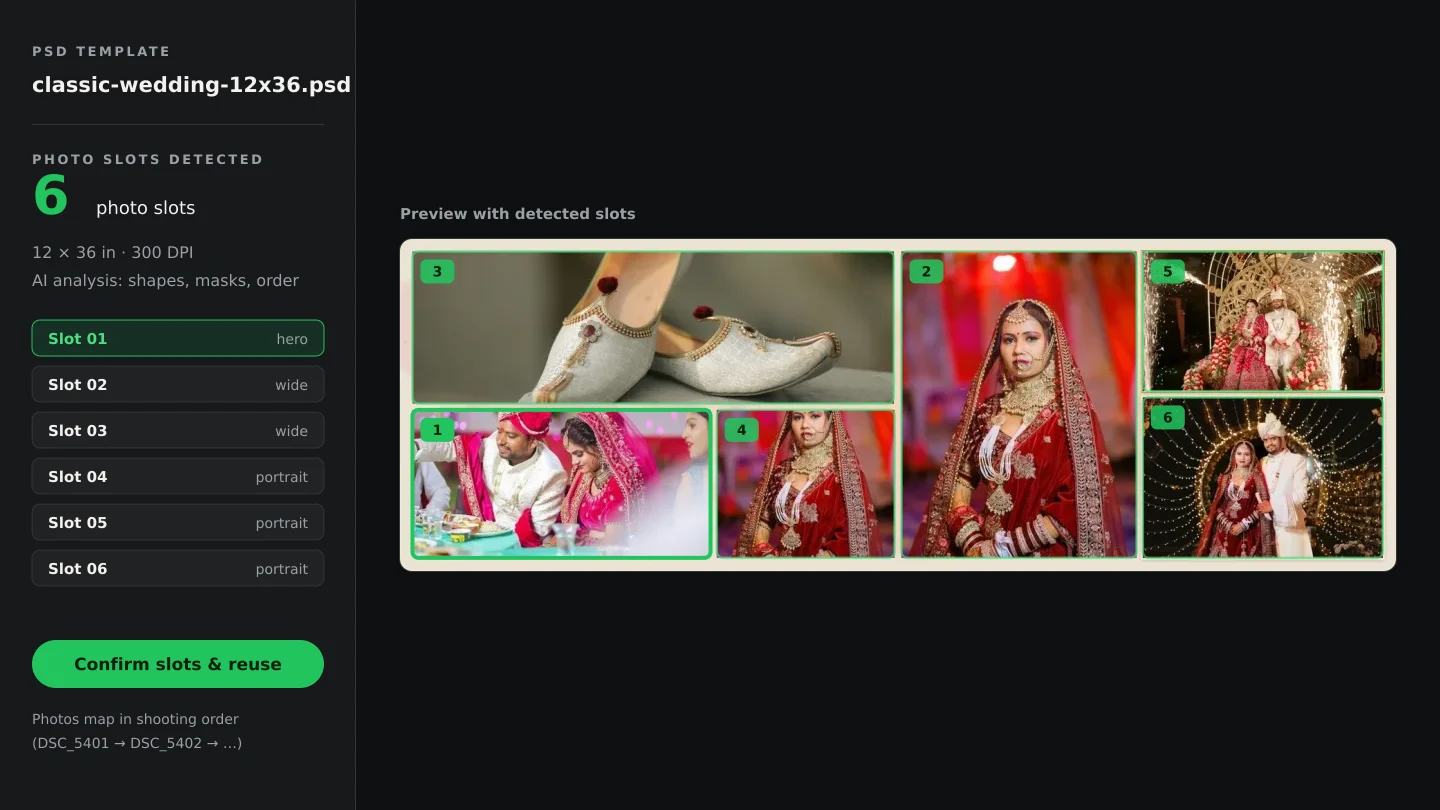
Upload a PSD to your portfolio and the system generates a JPEG preview. The preview is displayed publicly; the original PSD stays private behind signed, expiring URLs.
What You Need
- An active Premium Studio subscription.
- A published portfolio.
- Valid PSD files to showcase.
What PSD showcase previews do
PSD Showcase Previews automatically generate JPEG images from your PSD files. The previews can be displayed in your portfolio while the original PSD files remain private and protected.
Step by step
- 1
Access the portfolio builder
Log in to your Smart Photo Selection account, navigate to Portfolio and open your portfolio for editing.
- 2
Upload the PSD
Go to the PSD Previews section, click Upload PSD and select a PSD file from your computer. Wait for the preview to generate.
- 3
Add details
Enter a descriptive name, set the source type (for example album or custom design) and link it to the original album or project.
- 4
Preview and publish
Review the generated JPEG, adjust positioning if needed, click Save, then publish the portfolio.
Tips
- Use high-resolution PSDs for better preview quality.
- Organise previews by project or category.
- Keep original PSDs backed up locally.
Common Mistakes
Preview not generating
Verify the PSD file is valid and not corrupted.
Preview quality low
Ensure the original PSD has sufficient resolution.
Preview not appearing
Make sure you saved the preview and published the portfolio.
Frequently Asked Questions
Are the original PSDs ever public?
No. Only the generated JPEG preview is exposed, through a signed URL.
What formats are supported?
Uploads must be valid PSD files; previews are always JPEG.
Related Guides
Related Features
Try It in Smart Photo Selection
Open Album Studio with a photographer account, pick a booking and follow the steps above on your own photos.